Why websites use WebP
WebP is a picture format made for the web. A WebP usually holds the same picture as a JPG in a smaller file, so pages load faster and use less data on phones. That's why speed-testing tools often suggest serving images in WebP, and why many site builders and blogs prefer it.
How to convert JPG to WebP with Santra
- Open the folder with your pictures in File Explorer.
- Select one or many JPGs (Ctrl + A selects everything) and start dragging.
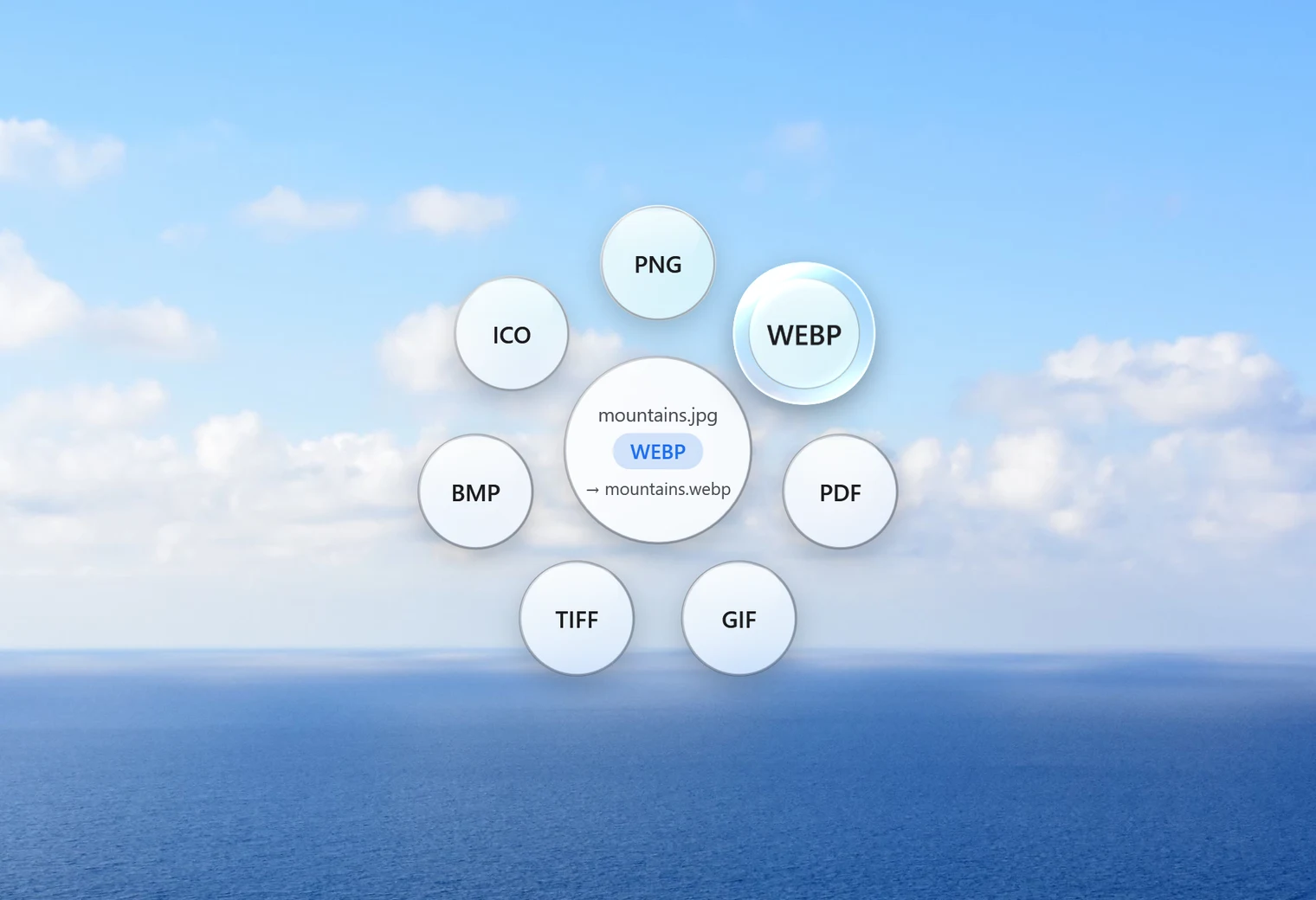
- Tap Shift to open Santra's Convert orbit.
- Drop them on WEBP.
Each picture gets a WebP twin with the same name next to it. Your JPGs are untouched, and if a WebP with that name already exists, the new one is saved as "name (2).webp".
How much smaller?
It depends on the picture. In our test, a 722 KB JPG photo became a 510 KB WebP, about 30% smaller, at the same size in pixels. Santra saves WebP at quality 90 out of 100, which keeps photos looking the same to the eye.
Need it smaller still? Use Compress from the Tools orbit instead (drag and tap Alt). It can save as WebP with a lower quality and resize large photos at the same time, and it shows the new size before saving.
PNG to WebP works too
Logos, icons and screenshots are often PNGs. Drop them on WEBP the same way. WebP keeps see-through areas, so a logo on a transparent background stays transparent. In our test, a transparent PNG logo came out as a WebP with its clear background intact.
Preparing pictures for a website
- Put all the photos for a page or post in one folder.
- If they come straight from a camera or phone, they may be far larger than any screen. Resize and compress them with Compress, choosing WEBP as the format, in one step.
- If they are already a sensible size, drop them on WEBP in the Convert orbit to change the format only.
- Upload the WebP files and keep the originals somewhere safe.
One more thing to know: converted pictures don't carry over hidden details such as the camera model, date taken or GPS location. For pictures going online, that's usually a good thing.
When to keep JPG instead
- For email attachments, printing and uploading to older forms, JPG is still the safest choice.
- Some older programs can't open WebP at all.
- Keep your JPG originals. If WebP causes trouble somewhere, you can always convert it back with WebP to JPG.
Other ways to convert JPG to WebP
- Online converters: fine for a few pictures, but each one is uploaded first, and many cap how many you can do at once.
- Image editors such as GIMP can export WebP, one picture at a time.
- Website plugins can convert images after you upload them, but you need a site that supports them.
Santra is the simple way to prepare a whole folder of pictures on your own PC before they go online. It runs on Windows 10 and 11. For a fuller comparison of formats, see WebP vs JPG vs PNG.