Where WEBM files come from
WEBM is a video format made for the web. You usually end up with one when you download a clip from a website, save a video from a browser-based tool, or record your screen with an app that saves WEBM by default. It plays fine in Chrome, Edge and Firefox, but many video editors, phones, TVs, presentation programs and upload forms expect MP4 instead.
How to convert WEBM to MP4 with Santra
- Find the WEBM file in File Explorer, often in your Downloads folder.
- Start dragging it, and keep holding the mouse button.
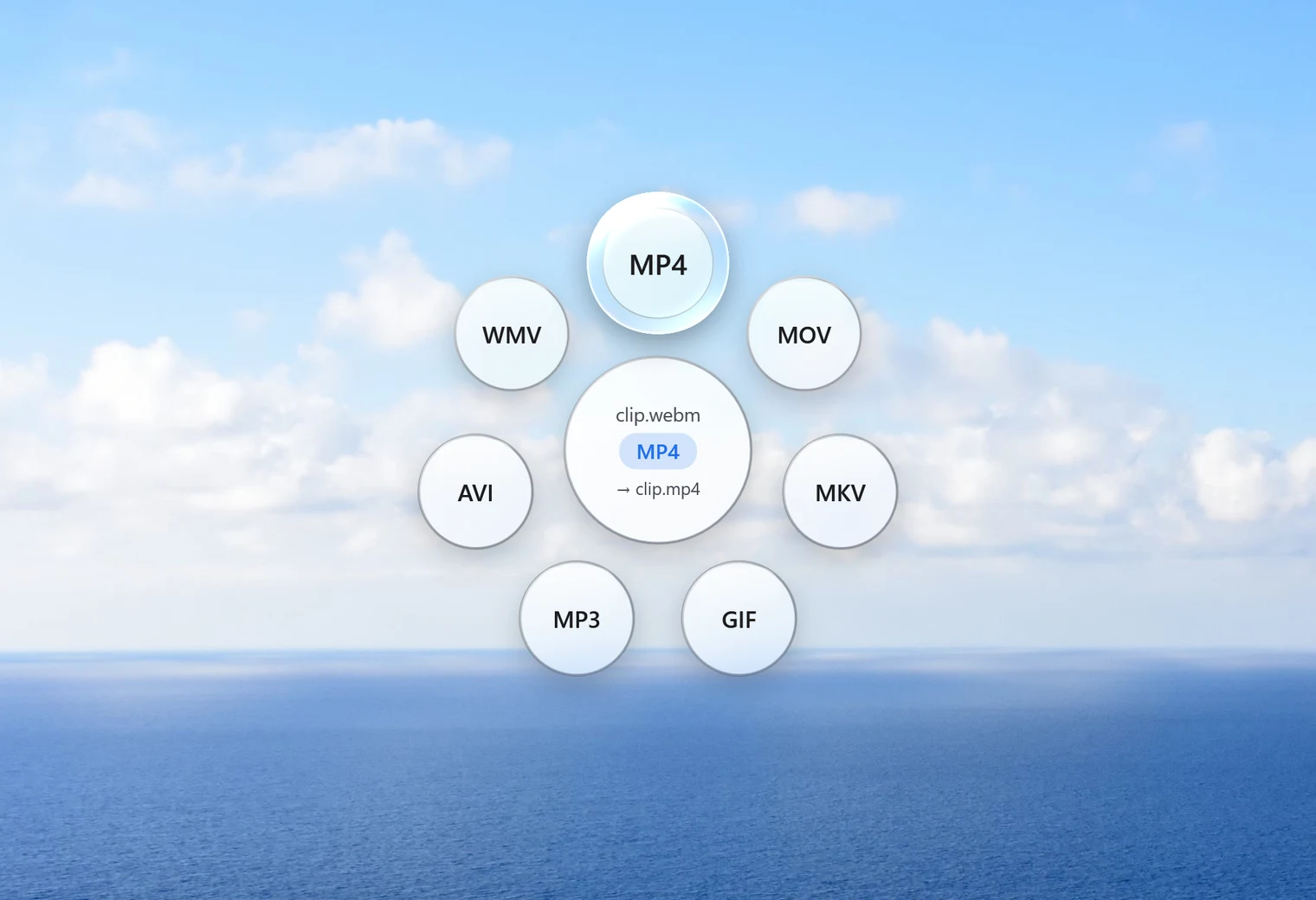
- Tap Shift. Santra's Convert orbit opens under your cursor.
- Drop the file on MP4.
A small notification shows how far along it is, with a Cancel button if you change your mind. The MP4 is saved next to the WEBM with the same name. The WEBM stays as it was, and an existing MP4 with that name is never overwritten: the new one becomes "name (2).mp4".
Why this one takes a little longer than some conversions
Some video conversions are almost instant, because the picture inside already suits the new format and Santra only repacks it. WEBM is different. Its video is normally stored as VP9 (or the older VP8), which MP4 players don't expect. So Santra re-encodes the picture to H.264, the format nearly every device plays, and the sound to AAC.
It does that with Windows' own built-in H.264 encoder. The time it takes grows with the length and size of the video; a short screen recording is quick, an hour-long talk takes a while. You can keep working while it runs.
Is it lossless?
No, and no converter can make it truly lossless when the video format itself changes. Re-encoding always compresses the picture again. For a normal screen recording or web clip the difference is hard to spot, but it's an honest trade: a new format means a new round of compression. If you need the absolute smallest file afterwards, run it through Compress video.
One thing that doesn't come across: subtitle tracks stored inside the video. Burned-in captions (part of the picture) stay, of course.
Many WEBM files at once
Select them all (Ctrl + A picks everything in a folder), drag them together, tap Shift and drop them on MP4. Each file gets its own MP4. There's no limit on how many or how large, because nothing is uploaded: your PC does the work.
Next steps once it's an MP4
Most WEBM files are screen recordings or clips you want to share, so a couple of Santra's tools tend to come next. Drag the MP4 and tap Alt for the Tools orbit:
- Trim cuts off the start and end, such as the moment you clicked "stop recording".
- Compress makes a smaller copy for email or chat, with a size estimate before you start.
- Add background puts a screen recording on a wallpaper, gradient or colour with rounded corners and a shadow, and keeps the sound.
Prefer an animation instead of a video? The Convert orbit also turns the clip into a GIF.
Other ways to convert WEBM to MP4
- HandBrake: free, with a great deal of control over quality and size. A good choice if you like settings.
- VLC: its Convert/Save option can produce MP4. It works, though the menus aren't obvious the first time.
- Online converters: convenient for a small public clip. Large files take long to upload, many sites cap the size, and private recordings leave your PC.
Santra is the shortest route when you just want a playable MP4: one drop, no settings, nothing uploaded, on Windows 10 and 11.