Phone videos and screen recordings get big fast: a minute of sharp video can easily be well over a hundred megabytes. Then the upload fails, the chat app refuses it, or the email bounces. The fix is a smaller copy of the video. First, here's how much each service actually accepts, taken from their own help pages.
Upload limits, from each service's own help pages
| Service | Limit per file | If it's bigger |
|---|---|---|
| Discord | 20 MB on free accounts (it was 10 MB until August 2026); 50 MB with Nitro Basic; up to 1 GB with Nitro | Not stated for videos |
| Gmail | 25 MB of attachments (work and school accounts: set by the administrator) | Gmail swaps the attachment for a Google Drive link |
| Outlook.com | 25 MB for the whole email, text and files together | Share it from OneDrive instead (linked files up to 2 GB) |
| Telegram | 2 GB per file (4 GB with Premium) | Not stated |
| Slack | 1 GB per file | Not stated |
| Up to 2 GB when sent as a document | See below |
Checked on 26 October 2026. Services change these limits from time to time (Discord's doubled this year), so follow the links for the latest. About WhatsApp: its blog says files sent as documents can be up to 2 GB, but we couldn't load its help pages to confirm the limit for videos sent the normal way, so we won't guess a number.
Why videos get so big
A video's size depends mostly on three things: how long it is, how many pixels each frame has, and how much detail the encoder keeps per second (the bitrate). Phones record at high resolutions and generous bitrates so the footage looks great on a big screen. That's far more than a chat window needs.
Compressing makes a new copy with a lower bitrate and, if needed, fewer pixels (for example 720p instead of 4K). On a phone screen or in a small chat window, the difference is hard to see, but the file can shrink to a fraction of its size. Length is the one thing compressing can't fix: twice as long still means roughly twice as big, which is why trimming helps so much.
How big is too big? A quick guide
- Discord (free) and email: aim for under 20 MB and 25 MB. This is where compressing matters most.
- Telegram and Slack: limits are large, but a smaller file still uploads and plays faster for everyone.
- Very long videos: no amount of compressing makes a 20-minute video fit in 20 MB and still look good. Cut it down, or share a link instead.
How to compress a video on Windows with Santra
- Find the video in File Explorer.
- Start dragging it, keep holding the mouse button, and tap Alt.
- Drop it on COMPRESS in Santra's Tools orbit. A small window opens.
- Pick a setting and check the size estimate, then click Compress.
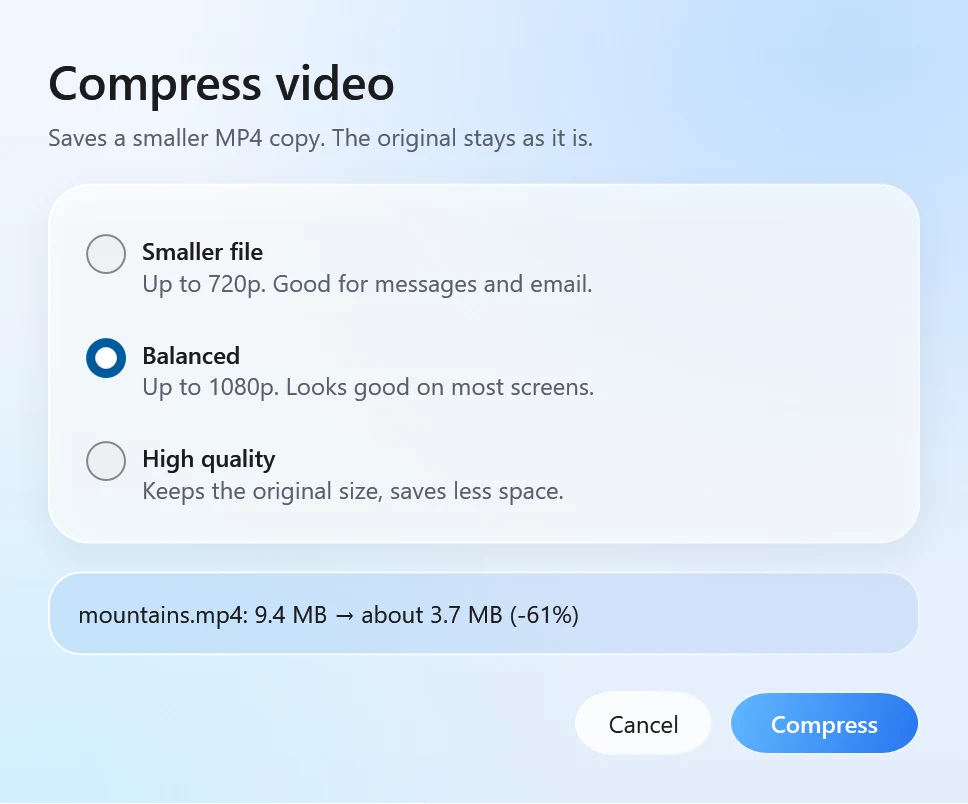
| Setting | Picture size | Good for |
|---|---|---|
| Smaller file | Up to 720p | Messages, Discord, email |
| Balanced | Up to 1080p | Looks good on most screens |
| High quality | Original size | Keeping detail, saving less space |
The result is a new MP4 (H.264 video with the sound kept) saved next to the original as name compressed.mp4. The original isn't changed. In our test, a 40-second 1080p clip of 31 MB became 18 MB with Balanced and 5 MB with Smaller file.
If the estimate is still too big
Santra doesn't let you type a target size such as "exactly 20 MB"; it gives you the three settings and an estimate. If even Smaller file is over the limit, the video is simply too long for it:
- Trim it first. Use Trim (same orbit) to keep just the part that matters. Trim shows frames of the clip to aim by; it doesn't play the video yet.
- Compress the trimmed copy with Smaller file.
- Still too big? Split the story into two shorter clips, or share a link (Gmail and Outlook.com offer this themselves).
Other ways to compress a video
- HandBrake: free and very capable, with detailed quality settings and presets. There's more to learn.
- Clipchamp or the Photos app's video editor: export at a lower resolution. Fine if you're editing anyway.
- Online compressors: convenient, but you upload the whole video, which is slow for big files and not ideal for private ones.
Santra is the quickest when you just need it smaller: one drag, a choice of three, done offline. More details in compress a video on Windows. Sharing a screen recording? Framing it on a background first can make it look far more polished: here's how.