MKV plays on your PC, so why convert?
MKV (Matroska) is a flexible, open video format, popular for recordings and downloads. Media players like VLC open it happily, but phones, TVs, video editors and upload forms often want MP4. Converting MKV to MP4 makes the same video work in more places.
How to convert MKV to MP4 with Santra
- Find the MKV file in File Explorer.
- Start dragging it and keep holding the mouse button.
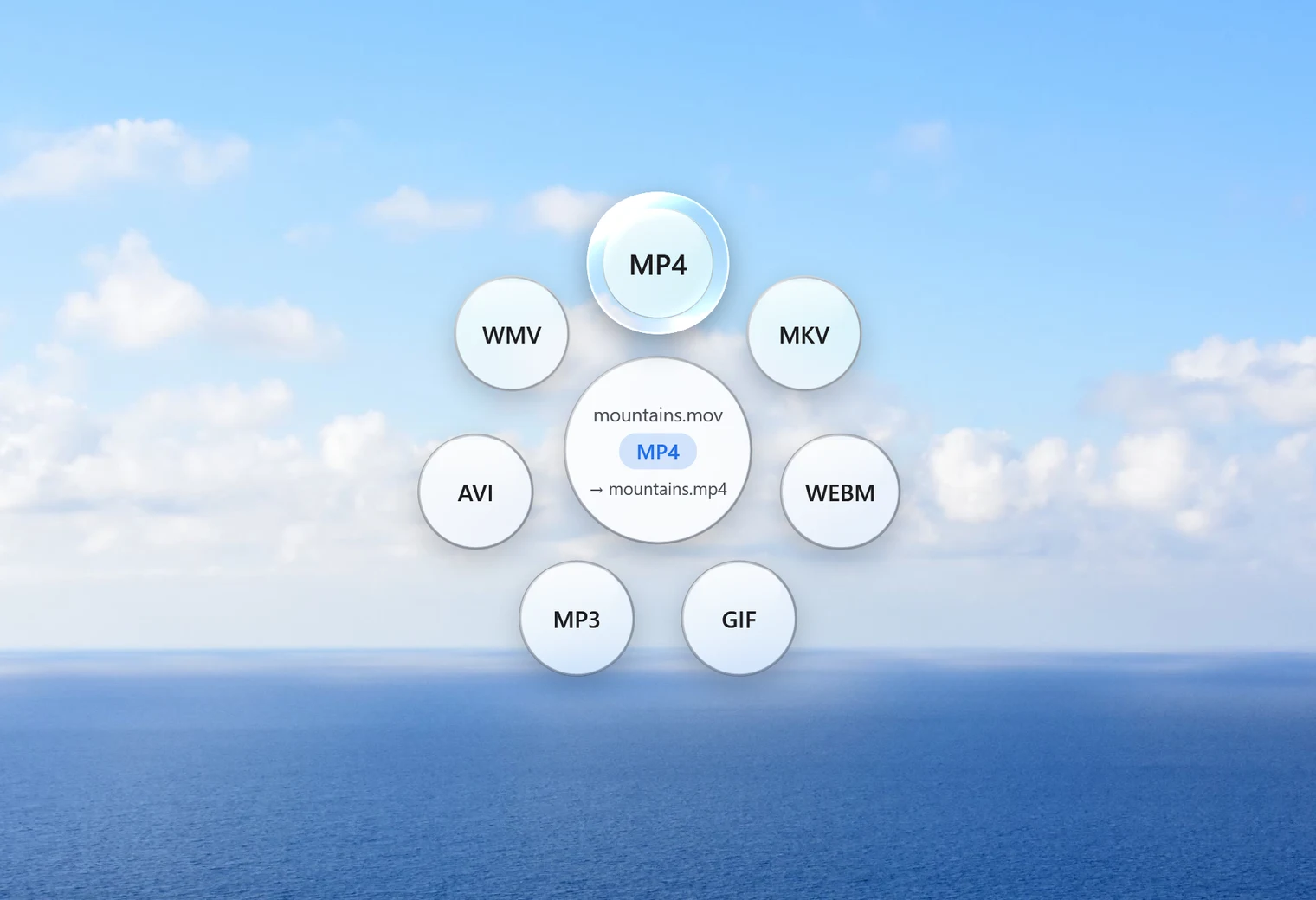
- Tap Shift. Santra's Convert orbit opens under your cursor.
- Drop the file on MP4.
The MP4 appears next to the MKV with the same name. The MKV is left as it is, and nothing is overwritten: if the MP4 name is taken, the new file becomes "name (2).mp4".
Remuxing, in plain words
Think of MKV and MP4 as two different kinds of box. The video and sound inside are separate parcels, each in its own format. Very often, the parcels inside an MKV are already in formats an MP4 box accepts. Then there's no need to unpack and rebuild them: Santra lifts them out of the MKV box and puts them into an MP4 box. This is called remuxing.
Because nothing is re-encoded:
- the picture and sound are bit-for-bit the same as before, so there is no quality loss;
- it's very fast. In our test, a 40-second 1080p MKV became an MP4 in under a second;
- the MP4 is about the same size as the MKV.
Santra does this automatically when the video is H.264 or HEVC and the sound is AAC, MP3, ALAC or AC3 (or there's no sound). You don't have to choose anything.
When the video has to be re-encoded
Some MKV files hold formats MP4 doesn't take well, such as other video codecs, or sound in formats like FLAC or Opus. In that case Santra re-encodes the video to H.264 with AAC sound, using Windows' own built-in encoder. That's slower, roughly in proportion to the length of the video, and a progress bar with a Cancel button shows how it's going. The quality stays good, but a re-encode is never quite a perfect copy.
What about subtitles?
MKV files often carry subtitle tracks inside them. Santra doesn't carry subtitle tracks over to the MP4. If you need them, keep the MKV, or use a tool made for subtitle editing.
Convert a whole series at once
Select all the MKV files (Ctrl + A selects everything in a folder), drag them together, tap Shift and drop them on MP4. Each becomes its own MP4, one after another.
Going the other way, or somewhere else
The same orbit converts any of these videos to MOV, MKV, WEBM, AVI, WMV or GIF, and MP3 if you only want the sound. And if the MP4 is too big to share, Compress video in the Tools orbit (drag and tap Alt) makes a smaller copy, with a size estimate before you start.
Other ways to convert MKV to MP4
- FFmpeg: the free command-line tool can remux with a single command. Powerful, but you need to be comfortable typing commands.
- HandBrake: free with lots of options, but it always re-encodes, so it's slower and not lossless.
- VLC: its Convert/Save option can make MP4, with a few menus to work through.
- Online converters: MKV files are often large, so uploading them can take a long time, and the video leaves your PC.
Santra gives you the quick remux without the command line, on Windows 10 and 11.