A bare screenshot dropped into a post, a slide or a help article often looks unfinished: hard edges, no breathing room, and it blends into whatever page it lands on. Putting it on a soft background with a little space around it is the quickest way to make it look deliberate. On a Mac there are several apps for this. On Windows the built-in tools don't do it, so most people either open a design app or skip it. Here is a quick way that stays on your PC.
What you need
- A screenshot saved as a file (PNG or JPG). Press Win + Shift + S to take one with Windows' own screenshot tool, then save it.
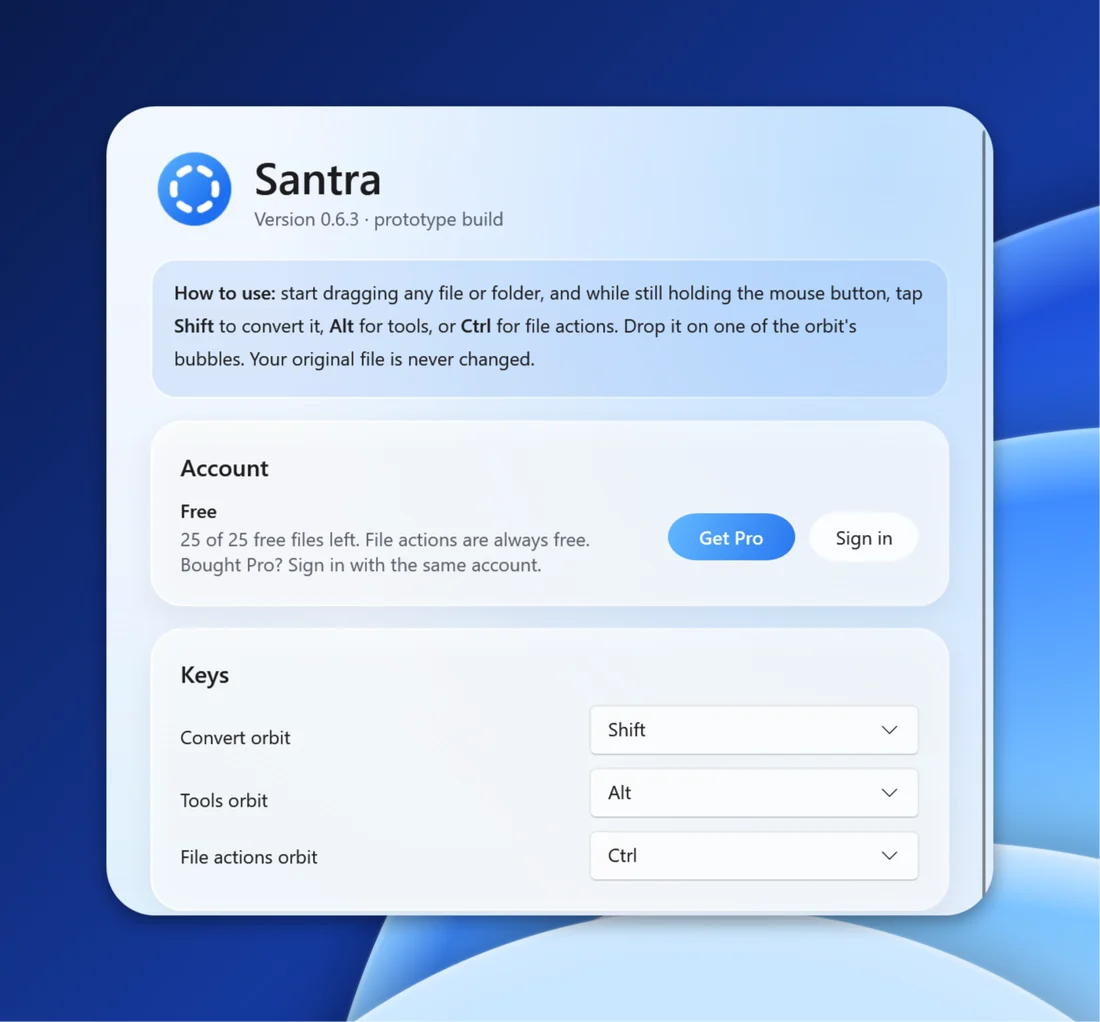
- Santra, a small Windows 10 and 11 app that works by dragging files. Your first 25 files are free; after that it is a one-time US$19 for up to 3 PCs.
Step by step
- Open the folder with your screenshot in File Explorer, or find it on your desktop.
- Start dragging the file, and keep holding the mouse button.
- Tap Alt. Santra's Tools orbit appears under your cursor.
- Drop the file on ADD BG. A small window opens with a live preview.
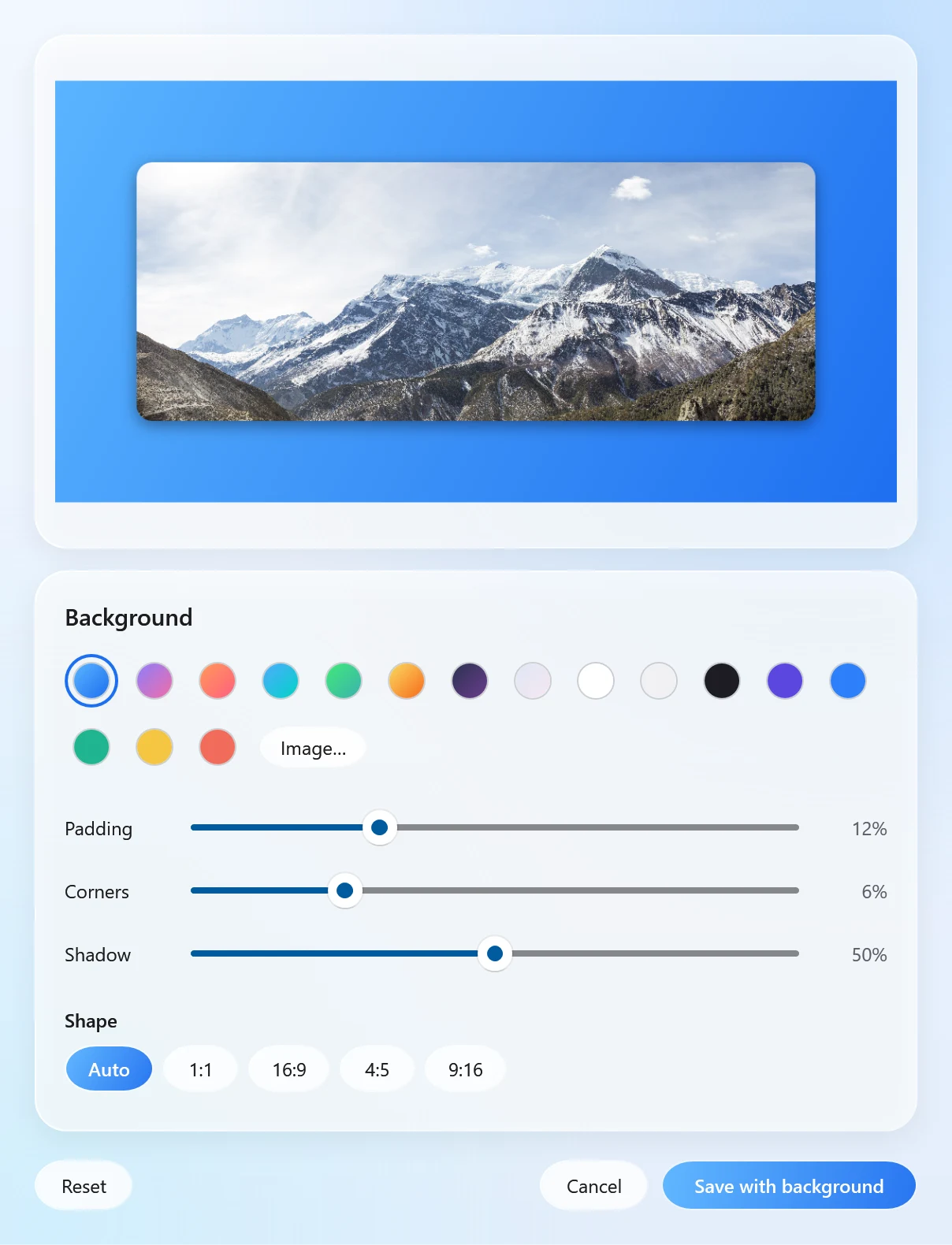
- Choose a background, adjust the frame (below), and click save.
The result is saved next to the original as name with background, so screenshot.png becomes screenshot with background.png. The original is never changed, and nothing is uploaded: it all happens on your PC.
Choosing the background
The window has four kinds of background:
- Wallpaper: 56 built-in wallpapers in 7 styles (Swirl, Flow, Spring, Sunset, Radiant, Midnight and Pastel). There's also a button to pick one at random when you can't decide.
- Gradient: a smooth blend between two colours. Calm, and it rarely clashes with the screenshot.
- Colour: one flat colour. Best when you want the screenshot to match your brand or a slide.
- Image: any picture of your own, for example a photo or your company background.
A background blur slider softens busy wallpapers and photos, so the screenshot stays the thing people look at.
Setting the frame
- Padding: how much background shows around the screenshot. More padding feels calmer and more "designed".
- Corner rounding: softens the screenshot's sharp corners, the way modern apps and phones look.
- Shadow: lifts the screenshot off the background so it reads as a separate layer.
- Shape: Auto keeps your screenshot's own proportions; 1:1, 16:9, 4:5 and 9:16 make the whole picture square, wide, or tall for phones and social posts.
If you're not sure, start with a gradient, medium padding, a little rounding and a soft shadow. For more on choosing settings, see how to make screenshots look professional.
Light, dark and see-through screenshots
- Light-mode screenshots (white windows) stand out best on a medium or dark background. On a very pale background the edges disappear, and the padding stops doing its job.
- Dark-mode screenshots look best on a lighter or more colourful background, or a dark one with a clear shadow so the window doesn't melt into it.
- Screenshots of a single window often already have rounded corners. Add only a little extra rounding, or none.
Not sure which looks right? Change the background while watching the preview. It updates as you go, and nothing is saved until you click the save button. Cancel closes the window without creating a file.
Doing many screenshots at once
Writing a tutorial or a product update with ten screenshots? Select them all in File Explorer (hold Ctrl and click each one), drag them together, tap Alt and drop them on ADD BG once. The settings you choose are used for every picture, so they come out matching. That consistency is a big part of looking professional.
Before you post: crop and compress
- Crop first if the screenshot includes things nobody needs to see (taskbars, other windows, private tabs). The Tools orbit has CROP, which can also crop several screenshots to the same area.
- Compress afterwards if the file is big: Compress in the same orbit makes a smaller JPG or WEBP copy and shows the new size before saving. PNG stays lossless, so it only gets smaller if you resize it or save it as JPG or WEBP.
Other ways to do it
- Design apps (online or desktop): flexible, with templates and text, but it's several steps per screenshot and online tools upload your picture.
- PowerPoint or a similar app: put the screenshot on a slide with a coloured background and export the slide as a picture. It works, slowly.
- Mac screenshot apps such as Xnapper do this on a Mac, together with taking the screenshot. We compare them in Xnapper alternative for Windows.
Santra is the quick option when your screenshots are already files on Windows: one drag, the same look for all of them, and no upload. It doesn't take screenshots itself and has no arrows, text or blur-a-part tools; it's for the background and frame. Have a screen recording instead? The same tool works for videos: see how to put a screen recording on a background.