When you need a PDF as pictures
A PDF is great for reading and printing, but plenty of places only take pictures. You might want to post one page of a menu on social media, drop a slide from a report into a chat, add a page to a photo album, or upload a form somewhere that only accepts JPG. In all of those cases the quickest fix is to turn the pages into ordinary pictures.
How to convert a PDF to JPG with Santra
- Find the PDF in File Explorer or on your desktop.
- Start dragging it, and keep holding the mouse button.
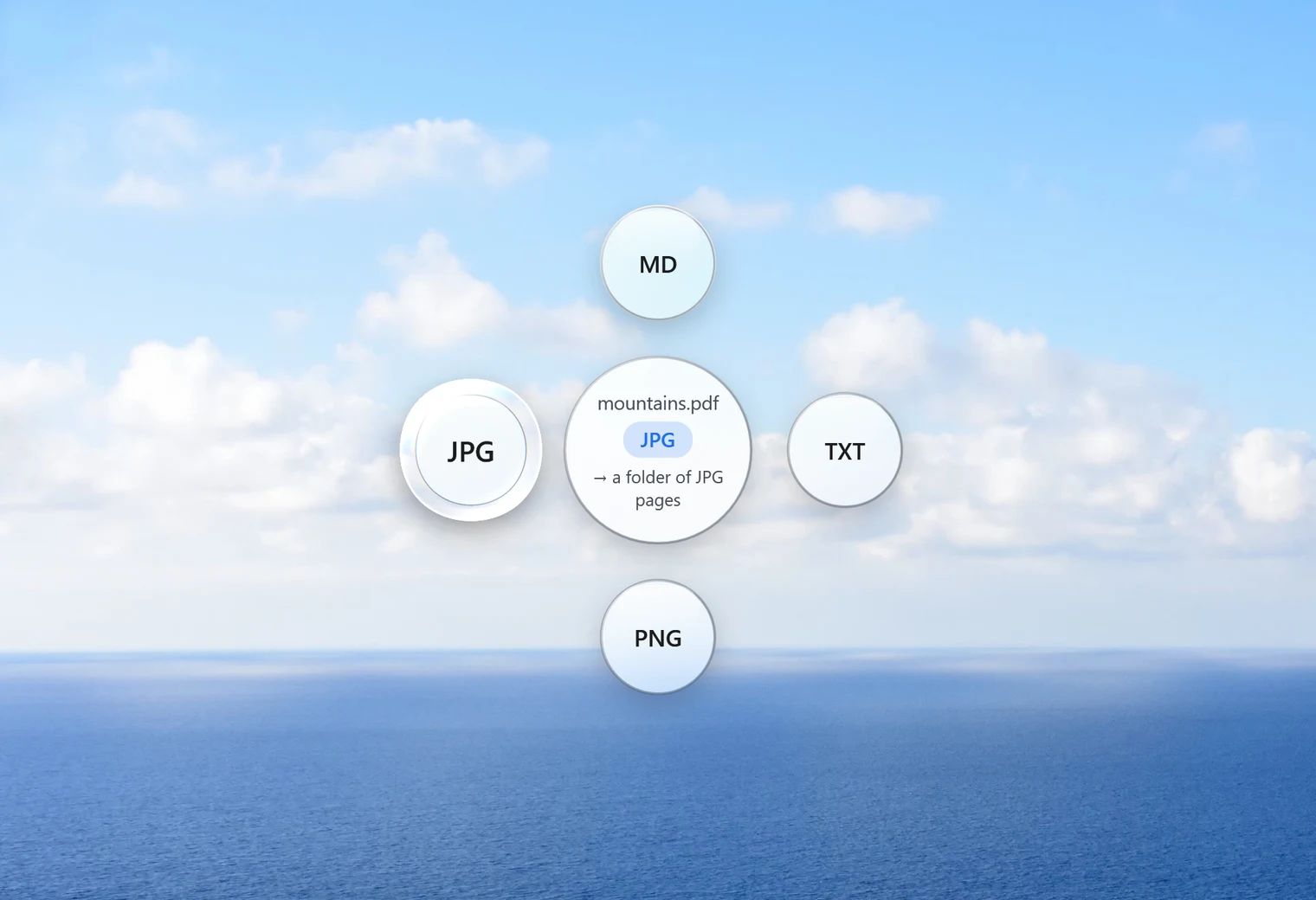
- Tap Shift. Santra's Convert orbit opens under your cursor.
- Drop the PDF on JPG.
Santra creates a new folder beside the PDF, named after it with "pages" on the end. For menu.pdf you get a folder called menu pages, and inside it Page 1.jpg, Page 2.jpg and so on, one for every page. The PDF itself is never changed. If a folder with that name already exists, the new one gets a number instead of mixing files together.
JPG or PNG pages?
The same orbit also offers PNG. The two suit different kinds of page:
| Pick | Best for |
|---|---|
| JPG | Pages with photos, brochures and anything you'll share in a chat or on social media. Smaller files. |
| PNG | Pages that are mostly text, diagrams or screenshots, where you want every edge perfectly sharp. Bigger files. |
Not sure? Try JPG first. If small text looks a little soft, convert again to PNG.
Several PDFs at once
Select all the PDFs you want (Ctrl + A selects everything in a folder), drag them together, tap Shift and drop them on JPG. Each PDF gets its own folder of pages, so nothing gets muddled. A small notification shows the progress.
Things worth knowing
- It's pictures, not text: the JPGs are images of the pages. You can't select or edit the words in them. If you need the text itself, the orbit also offers TXT and MD, which pull the words out.
- Scanned PDFs are already pictures of paper. They convert to JPG fine, but there's no text inside them to pull out as TXT.
- No PDF to Word: Santra deliberately doesn't turn PDFs back into Word documents, because the results are unreliable everywhere.
- Going the other way: to turn photos into a PDF, see JPG to PDF.
Common jobs, and the best way to do them
- One page for a chat or social post: convert the whole PDF, then open the new folder and share just the page you need. The others cost nothing to keep or delete.
- A form that only accepts JPG: convert, then upload
Page 1.jpg. If the form has a size limit, run the picture through Compress afterwards. - A photo album or slideshow: convert a brochure or certificate to JPG and it sits alongside your other pictures like any photo.
- Keeping a record: pictures of each page are handy for quick previews, but keep the PDF as the real copy: it has the selectable text.
Other ways to save PDF pages as JPG
- Snipping Tool: open the PDF, press Win + Shift + S and capture the page. Fine for one page, but the picture is only as sharp as your screen and you do it page by page.
- Online converters: quick and free, but the whole PDF is uploaded first. Think twice with bank statements, contracts or anything personal.
- PDF editors often have an "export as image" option, sometimes only in paid versions.
Santra is the easy route when you have long documents or many of them: every page in one drop, saved neatly, nothing leaves your PC. It runs on Windows 10 and 11.