Why GIFs are still useful
A GIF plays by itself, loops forever and works almost everywhere: chat apps, emails, slides, bug reports and documentation. You don't need to press play, and there's no sound to worry about. That makes a short GIF the easiest way to show a quick moment or a step on screen.
How to make a GIF from a video with Santra
- Find the video in File Explorer. MP4 works, and so do MOV, MKV, WEBM, AVI, WMV and other common video files.
- Start dragging it and keep holding the mouse button.
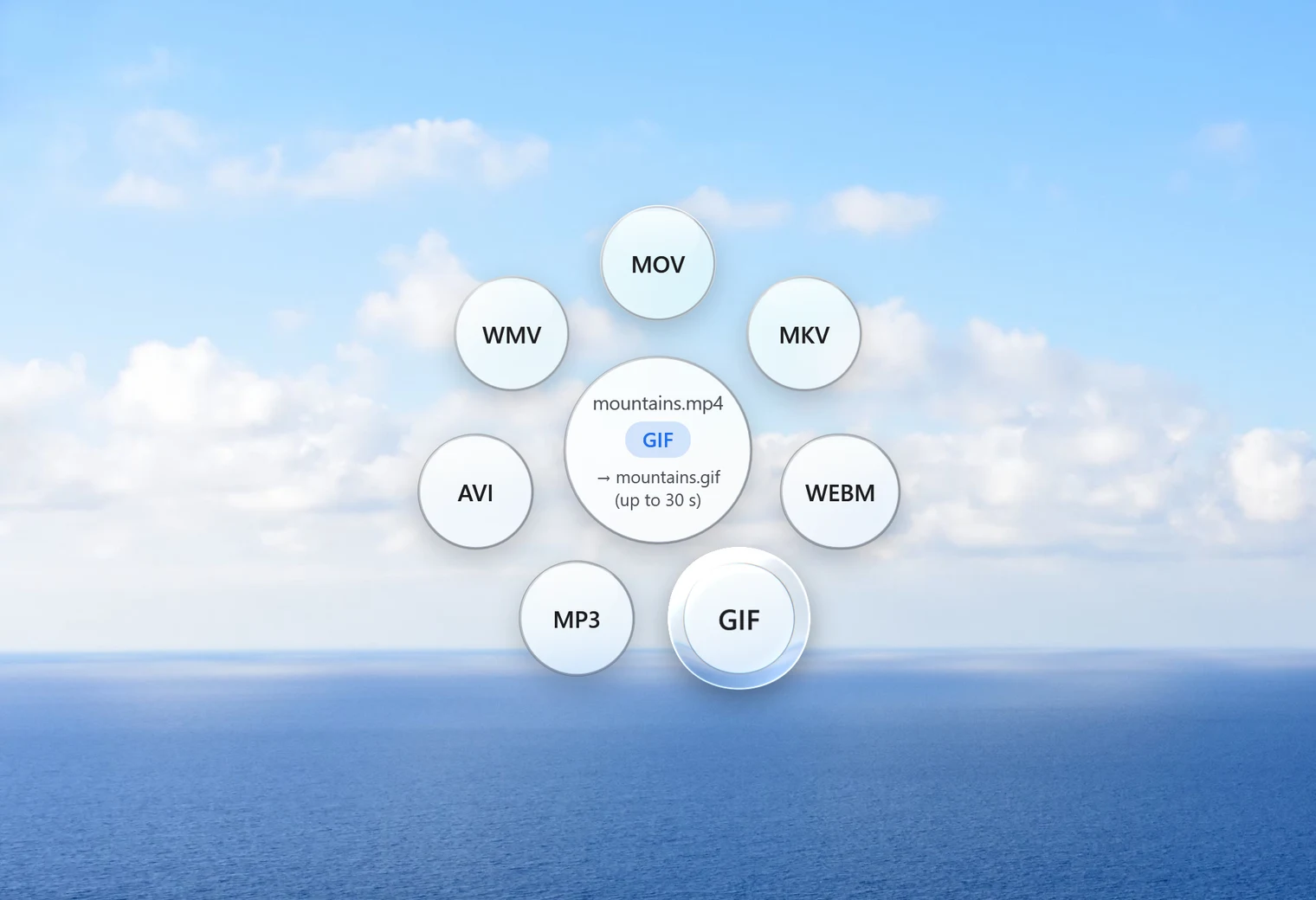
- Tap Shift. Santra's Convert orbit opens under your cursor.
- Drop the file on GIF.
A small notification shows the progress, with a Cancel button. The GIF appears next to the video with the same name. The video is untouched, and an existing GIF with that name is never overwritten.
What the GIF will be like
GIF is an old format with real limits, so Santra makes some sensible choices for you:
| Setting | What Santra does |
|---|---|
| Length | At most the first 30 seconds. If the video is longer, Santra tells you so when it finishes. |
| Smoothness | 12 frames per second |
| Size | At most 640 pixels wide (smaller videos keep their size) |
| Looping | Loops forever |
| Sound | None. GIFs can't hold sound. |
In our test, a 40-second 1080p video became a 640 by 360 GIF of its first 30 seconds, with a note saying so. Santra also builds the best set of 256 colours for each GIF, which keeps gradients and skin tones looking better than a basic conversion.
Keep your GIF small
GIFs get big quickly, because the format is far less efficient than modern video. The best way to keep one small is to keep it short. Use Santra's Trim tool first (drag the video and tap Alt) to keep only the few seconds you need, then turn that short clip into a GIF.
If the place you're posting to accepts video, a short MP4 is usually much smaller than the same clip as a GIF, and it can keep the sound.
Turn a screen recording into a GIF
A short GIF is a great way to show someone how to do something on screen: where to click, what a bug looks like, how a feature works. Record your screen with any recorder that saves a video file (Windows' Snipping Tool and Xbox Game Bar both can), then drag the recording, tap Shift and drop it on GIF.
For a more polished look when you share the video itself, Santra's Tools orbit can also put a screen recording on a wallpaper, gradient or colour, with padding, rounded corners and a shadow. That tool saves an MP4, not a GIF.
Other ways to make a GIF on Windows
- Snipping Tool: on some Windows 11 PCs it can save screen recordings as GIFs. It only works for things you record on screen, not for video files you already have.
- Online GIF makers: they often have more editing options, like adding text, but the video is uploaded first, and some add a watermark or limit the file size.
- FFmpeg or GIMP: free and very flexible, but they take time to learn.
Santra is for the quick case: you have a video, you want a GIF, one drop. It runs on Windows 10 and 11.