You save a picture from a website and it arrives as .webp. A friend sends a screenshot as .png. Your phone's photos are .jpg. They all show a picture, so why are there three kinds, and does it matter which one you use? It does, a little, and once you know what each format is good at, the choice takes a second.
The short version
| Use | When |
|---|---|
| JPG | Photos you email, print, upload to forms or share with anyone. It opens everywhere. |
| PNG | Screenshots, logos, diagrams, text, and anything that needs a transparent (see-through) background. |
| WebP | Pictures on your own website or blog, where small files make pages load faster. |
JPG: the photo format everyone understands
JPG (also written JPEG) has been around since the early 1990s, which is why almost every program, phone, printer and upload form accepts it. It is a lossy format: to keep files small, it quietly throws away detail your eye is unlikely to notice. For photos that works very well. A holiday picture saved as JPG looks the same to most people and takes a fraction of the space.
Where JPG is weaker:
- Sharp edges and text. Screenshots and logos can get faint smudges around letters and lines, because the format is tuned for soft, natural detail.
- No transparency. A JPG is always a full rectangle. A logo with a see-through background gets a solid background instead.
- Re-saving adds up. Each time a JPG is edited and saved again, a little more detail can be lost.
PNG: every pixel kept, and see-through backgrounds
PNG is lossless: it keeps every pixel exactly as it was. That makes it the right choice for screenshots, diagrams, icons and anything with text, where sharp edges matter. PNG also supports transparency, so a logo can sit on any background without a white box around it.
The price is size. A photo saved as PNG is usually several times bigger than the same photo as JPG, with no visible gain. Turning a JPG into a PNG doesn't bring back detail the JPG already threw away, and it doesn't make the background transparent either. It just makes a bigger file.
WebP: small files for the web
WebP is a newer format made by Google for websites. It can work both ways, lossy like JPG or lossless like PNG, and it supports transparency and animation. For the same look, WebP files are generally smaller than JPG or PNG, which is why so many websites now serve their pictures as WebP. That's also why your browser often saves pictures as .webp: you get the file the site sent, not a JPG.
Modern browsers all show WebP, and Windows 10 and 11 can usually open it too. The trouble comes outside the browser: some older programs, online forms, print shops and photo services still expect JPG or PNG and reject a WebP, or show it as an unknown file. Renaming photo.webp to photo.jpg doesn't fix this, because the picture inside is still WebP. It has to be converted.
Size, quality and transparency side by side
| JPG | PNG | WebP | |
|---|---|---|---|
| Keeps every pixel | No | Yes | Either, depending on how it was saved |
| Transparent background | No | Yes | Yes |
| Animation | No | No (in practice) | Yes |
| Photo file size | Small | Large | Smallest |
| Opens almost everywhere | Yes | Yes | In browsers and newer apps; some older programs and forms refuse it |
Which one for common jobs
- Emailing photos or attaching them to a form: JPG. Everyone can open it.
- Printing photos: JPG, unless the print shop asks for something else.
- A screenshot for a bug report or a how-to: PNG, so text stays crisp.
- A logo or icon: PNG, to keep the transparent background.
- Pictures for your own website: WebP, for faster pages.
- Several photos in one document: neither; put them in one PDF instead.
If a file is simply too big to send, changing format isn't the only answer. Saving a large PNG photo as JPG or WebP usually shrinks it a lot, and making the picture smaller in pixels helps too. Our guide to compressing images covers both. And when you're unsure, JPG is the format least likely to cause anyone a problem.
How to switch formats on Windows
For one picture now and then, Paint works: open the picture, choose File, Save as, and pick JPEG or PNG. It handles one file at a time.
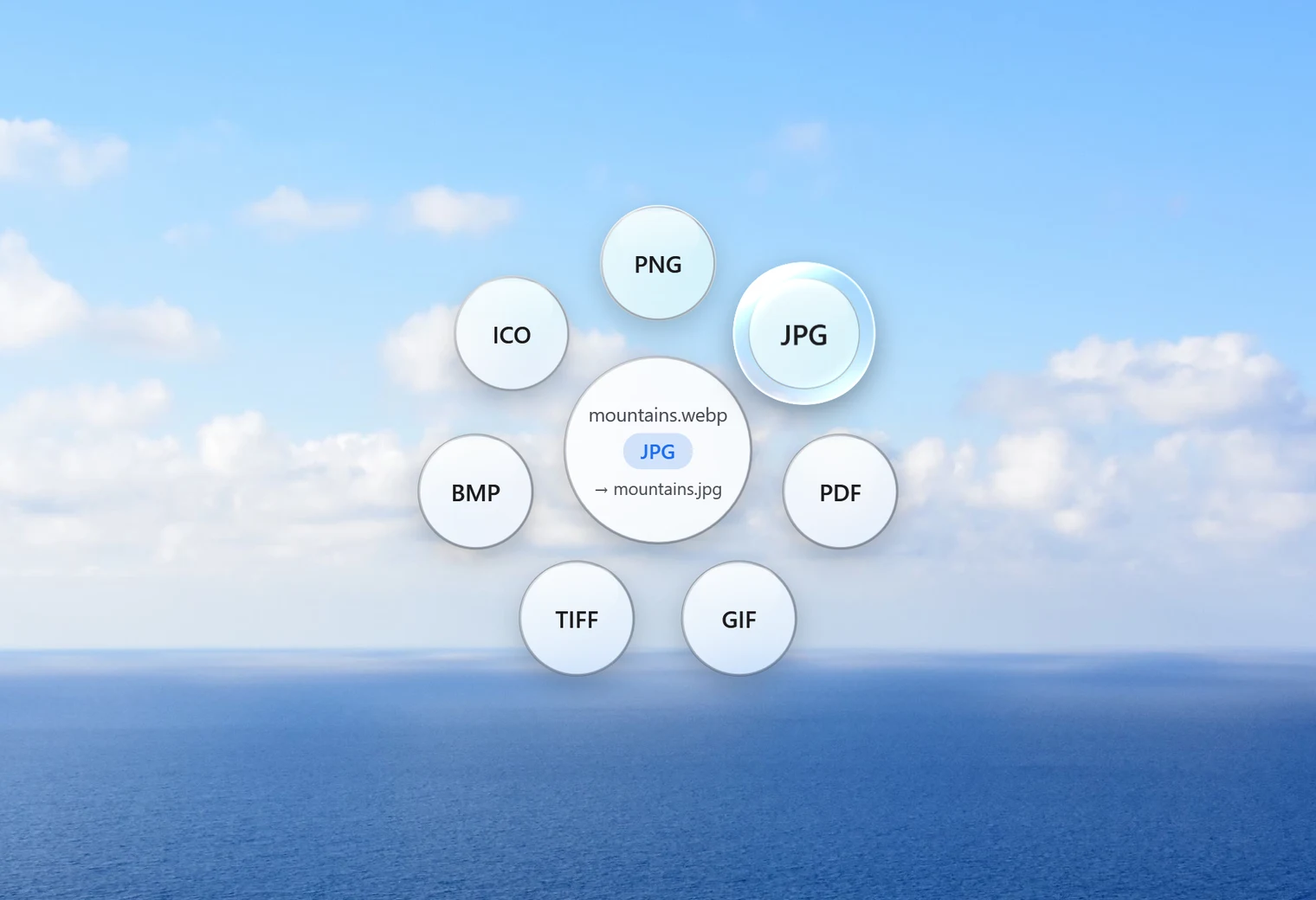
Santra does it from File Explorer without opening anything. Start dragging the picture, tap Shiftwhile still holding it, and a small glass orbit of formats appears under your cursor. Drop the file on JPG, PNG, WEBP or another format. The new file is saved next to the original, which stays as it was, and nothing is overwritten: if the name is taken, the new one becomes "name (2)". You can drag many pictures at once and drop them in one go.
A few things worth knowing, so there are no surprises:
- JPG is saved at quality 92, which keeps photos looking the same to the eye.
- JPG can't be see-through, so transparent areas become white, not black.
- An animated WebP or GIF keeps only its first frame.
- The picture keeps its size in pixels; nothing is resized.
- Everything happens on your PC, offline. Your pictures are never uploaded.
Santra works on Windows 10 and 11 (64-bit). The first 25 conversions are free. For the details of each switch, see WebP to JPG, WebP to PNG, PNG to JPG and JPG to PNG.