A quick cut, without a video editor
Most of the time you don't need an editor at all: you want to drop the shaky first seconds of a phone clip, or keep the one minute of a long screen recording that matters. Trimming keeps one part of a video and leaves the rest out.
How to trim a video with Santra
- Find the video in File Explorer or on your desktop.
- Start dragging it, and keep holding the mouse button.
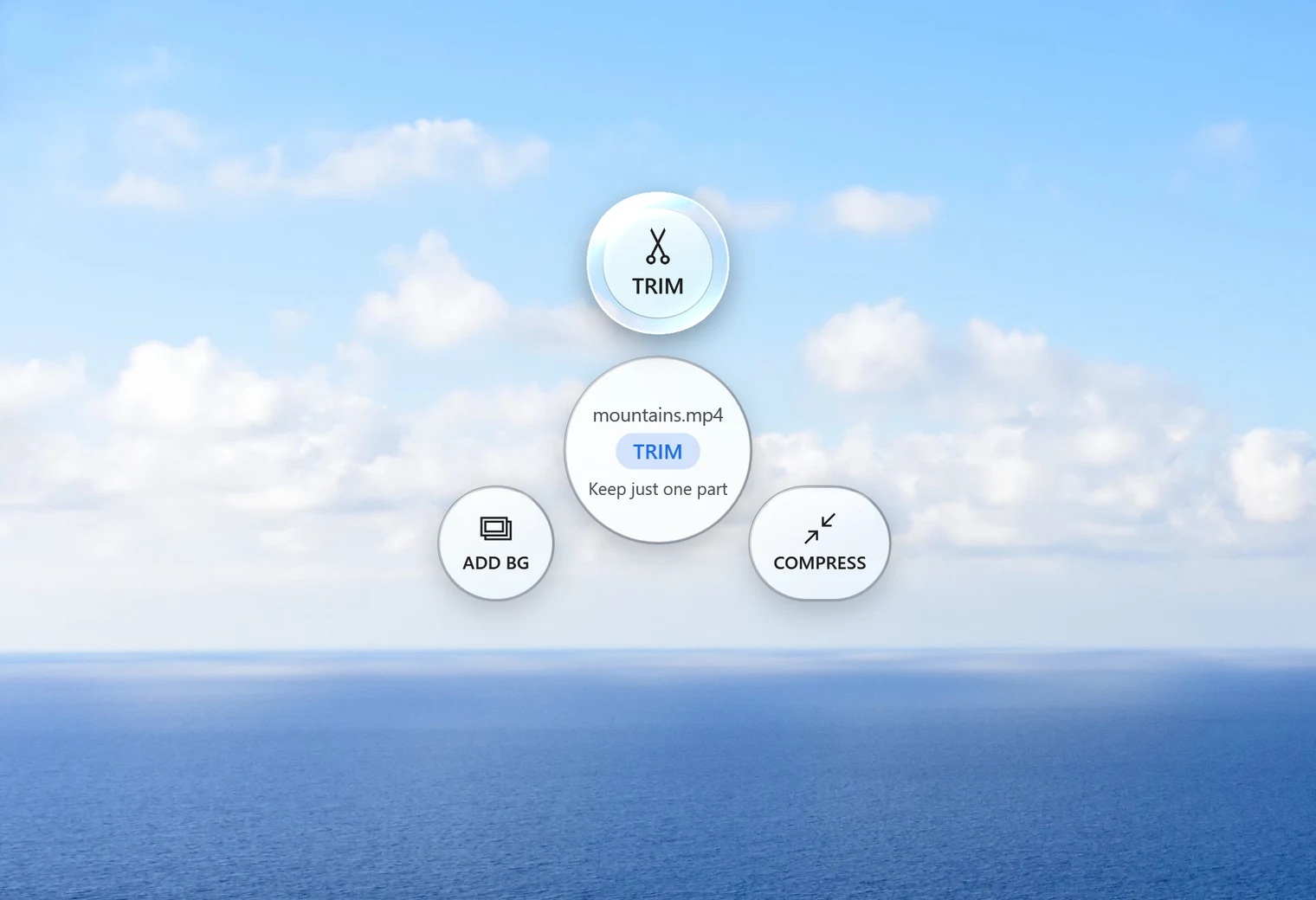
- Tap Alt. Santra's Tools orbit opens under your cursor.
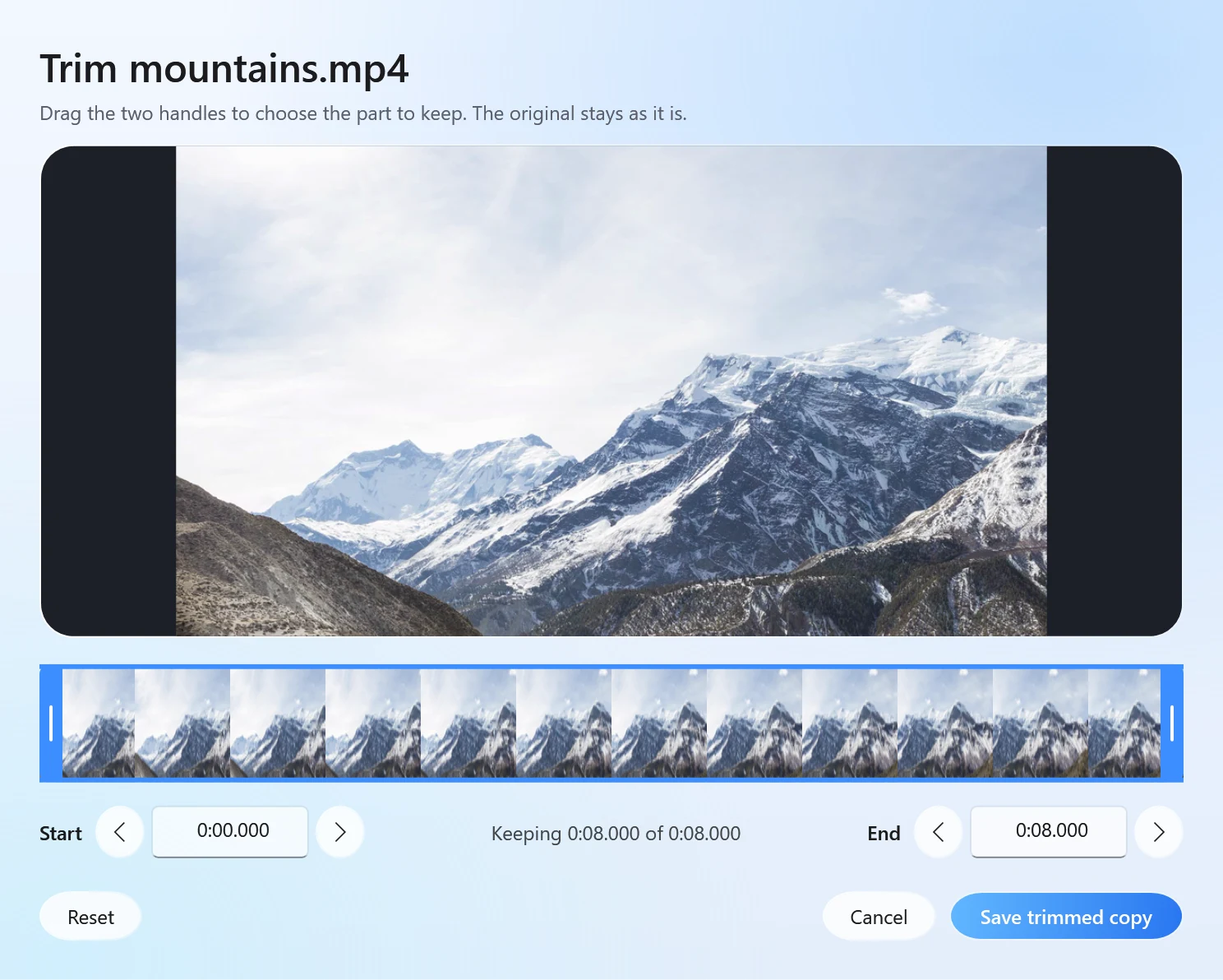
- Drop the video on Trim. The Trim window opens with a strip of frames from the clip.
- Move the start and end markers to the part you want to keep, and save.
Santra saves the kept part next to the original, in the same format, as name trimmed.mp4 (or .mov, .mkv and so on). The original video isn't changed, and nothing is ever overwritten.
Good to know before you start
- Trim shows frames, it doesn't play the clip yet. You aim by the picture strip. For most cuts (the start, the end, a clear change of scene) that's plenty. If you need to watch and listen to find an exact moment, a video editor that plays the clip is the better tool for now.
- One video at a time. Trim works on a single clip.
- Exact cuts. The kept part is re-encoded, so it starts and ends exactly where you chose, rather than jumping to the nearest key frame. In our test, trimming from 5 to 12 seconds gave a clip of exactly 7.0 seconds, in about 6 seconds of work.
- Sound too. Santra can also trim audio files such as MP3 or WAV, with a waveform to aim by.
Tips for a clean cut
- Leave a little room. Since you aim by frames rather than playback, set the start a moment early and the end a moment late. Cutting a word in half is more noticeable than half a second of extra picture.
- Look for a change in the picture. A new scene, someone entering or the screen switching apps is easy to spot in the frame strip.
- Only need the sound? Turn the video into an MP3 first, then trim the MP3 with the waveform, where speech and silence are easy to see.
After trimming
Want it smaller to send? Drop the trimmed clip on Compress in the same orbit. Need a GIF instead? Drop it on GIF in the Convert orbit (Shift): see MP4 to GIF. To put several trimmed clips together, use Join.
Other ways to trim a video on Windows
- Clipchamp: the video editor that comes with Windows 11. It plays the clip while you trim, which helps for precise cuts, but it's a full editor with a timeline and an export step.
- Photos app: depending on your Windows version, Photos offers a simple trim or hands you over to Clipchamp.
- Online trimmers: fine for small clips, but the whole video has to be uploaded first, and free versions often limit length or add a watermark.
Santra is quickest when you know roughly where to cut: drag, drop, set two markers, done, and the clip never leaves your PC. It works only on Windows 10 and 11.