When a password helps
Payslips, tax forms, contracts and medical letters often travel by email or sit in shared folders. A PDF with an open password can only be read by someone who knows that password, so if the file ends up in the wrong inbox, it stays closed.
How to lock a PDF with Santra
- Find the PDF in File Explorer or on your desktop.
- Start dragging it, and keep holding the mouse button.
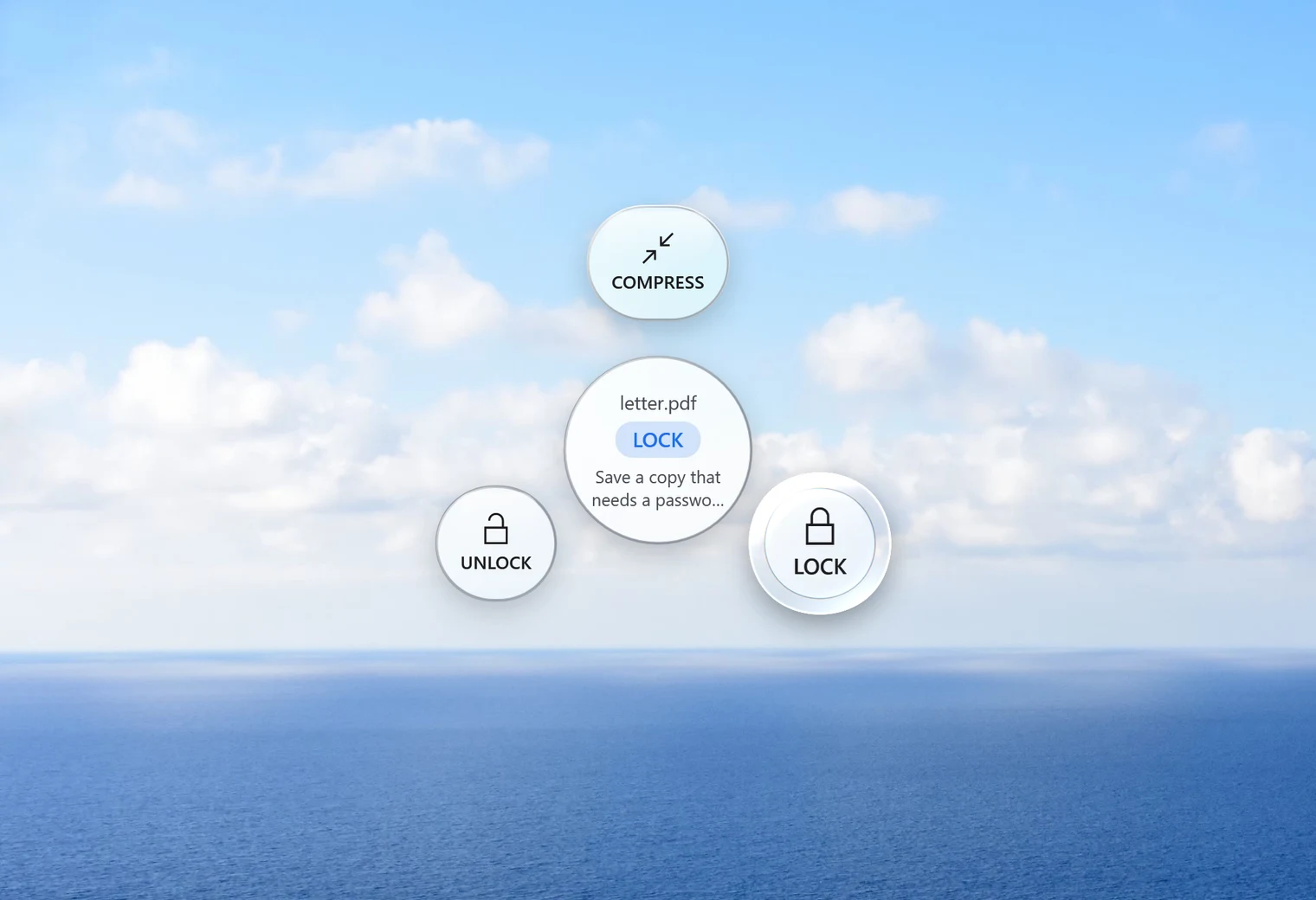
- Tap Alt. Santra's Tools orbit opens, with Compress, Lock and Unlock.
- Drop the PDF on Lock. A small window opens.
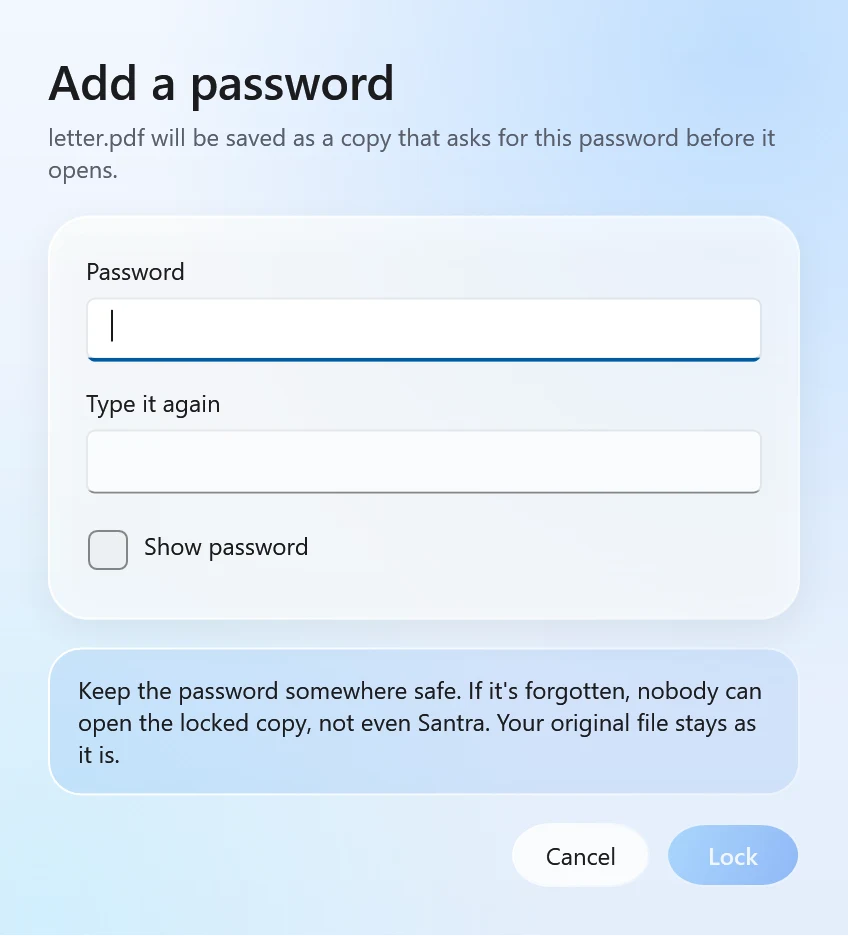
- Type the password, type it again to be sure, and click Lock.
Santra saves a locked copy next to the original, called name locked.pdf. The original stays unlocked, so you can keep it somewhere private and send the locked copy.
How strong is the lock?
Santra encrypts the copy with AES-256, the strongest encryption the PDF format offers. Without the password, the pages can't be read. In our test, the locked copy asked for the password and the wrong password didn't open it.
That also means: keep the password somewhere safe. Santra never stores or logs the password, so it can't give it back to you, and a forgotten password can't be recovered.
Choosing and sharing the password
- Make it long. A few unrelated words strung together, like
maple-ferry-candle-42, is far harder to guess than a short word with symbols, and easier to type. - Send it another way. If you email the locked PDF, share the password by phone or text message, not in the same email.
- Use "Show password" in the window if you want to check what you typed before locking.
- Write it down somewhere safe, such as a password manager, before you delete any unlocked copy.
Removing the password again
The same orbit has Unlock. Drop a locked PDF on it, type the password, and Santra saves a copy without the open-password. It always needs the right password: Santra never breaks into PDFs, and it's not a tool for opening files that aren't yours.
Lock several PDFs at once
Select several PDFs, drag them together, tap Alt and drop them on Lock. Each gets its own locked copy. Folders themselves can't be dropped, so select the files inside instead.
Other ways to password-protect a PDF
- Microsoft Word: if the document starts life in Word, its Save as PDF options can encrypt the PDF with a password. That only works for documents you create in Word.
- LibreOffice: the free office suite can also set a password when exporting to PDF.
- Adobe Acrobat: the paid version can add passwords. The free Acrobat Reader can't.
- Online tools: they work, but you upload the very document you're trying to protect, together with its password. For private papers that rather defeats the point.
Santra locks any PDF you already have in one drag, offline, with nothing to install beyond Santra itself. It works only on Windows 10 and 11.