When you just want one video
Phones split long recordings, cameras save one file per shot, and screen recordings come in pieces. Sending five clips is awkward; one video is easier to share, upload or keep. Merging puts the clips end to end in a single file, with no editing timeline to learn.
How to merge videos with Santra
- In File Explorer, select the clips (hold Ctrl and click each one).
- Start dragging them, and keep holding the mouse button.
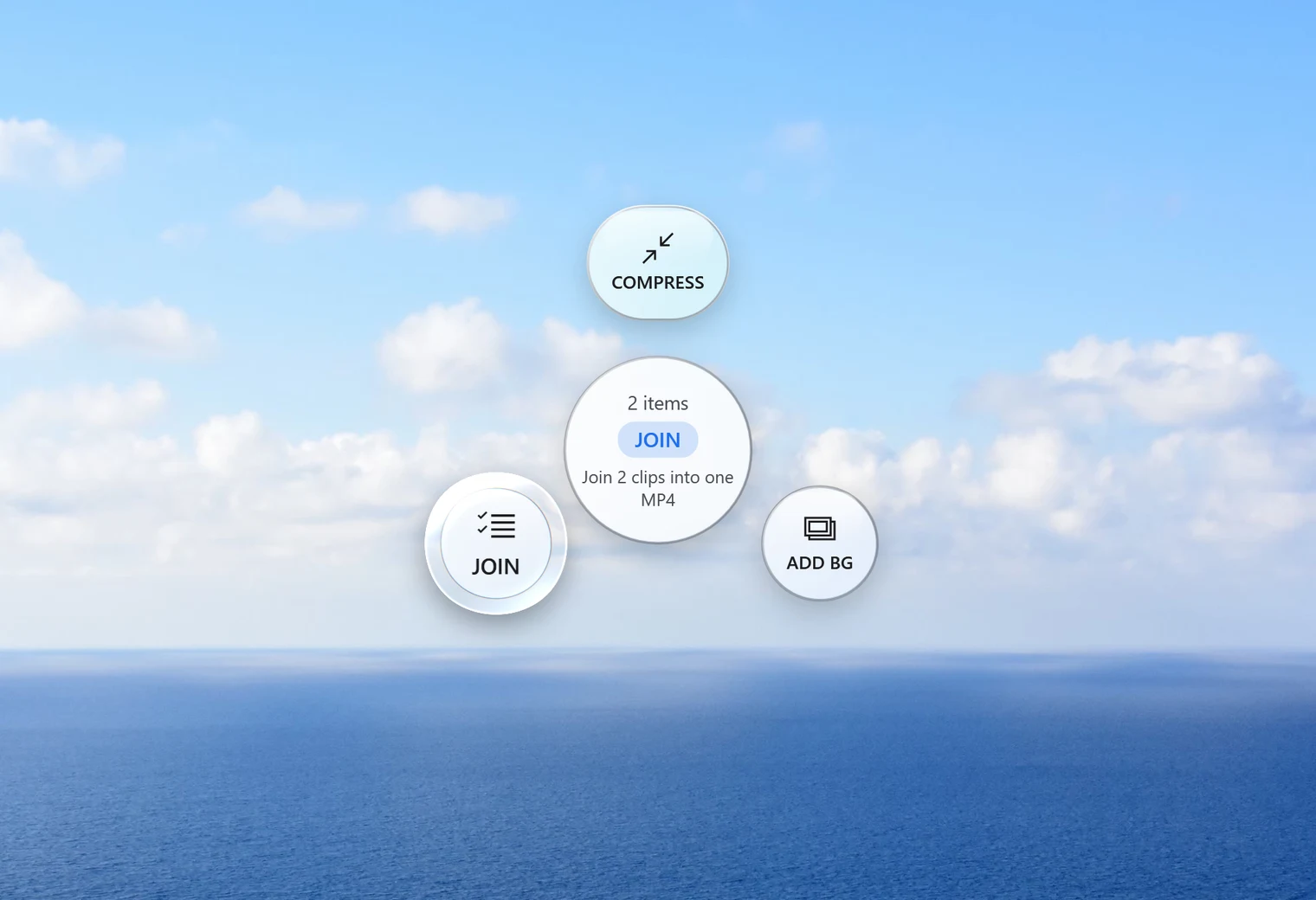
- Tap Alt. With two or more videos, Santra's Tools orbit offers Join.
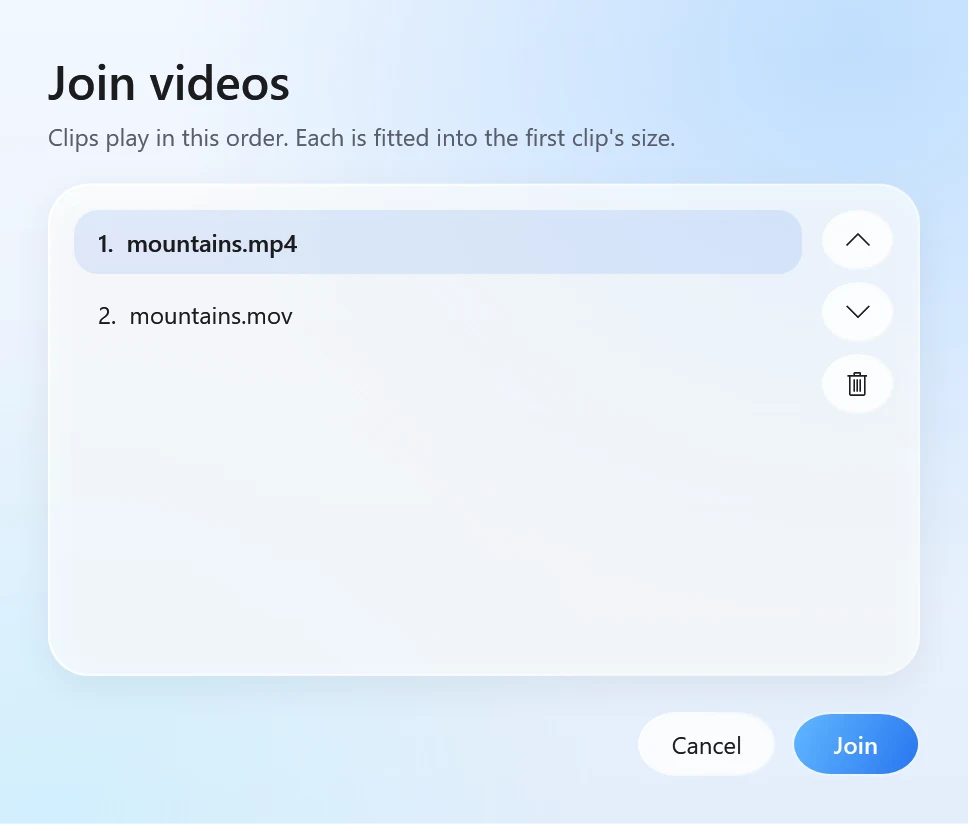
- Drop the clips on Join. A small window lists them.
- Move clips up or down to set the order, leave one out if you like, and click Join.
The new video is saved next to the first clip and named after it, for example holiday joined.mp4. The original clips aren't changed, and nothing is ever overwritten.
Mixing formats and sizes
- Different formats are fine. You can join an MP4 with a MOV or an MKV. In our test, an MP4 and an MKV became one 80-second MP4.
- Different shapes are fitted. Every clip is fitted into the size of the first one. If a clip has a different shape, for example a portrait phone video after a landscape one, it gets black bars instead of being stretched. Put the clip whose shape you want first.
- The result is always MP4, because the clips are re-encoded into one video. That takes a little while for long or high-resolution clips, and it's what lets clips of different kinds join cleanly.
Tips for a smooth result
- Choose the first clip on purpose. It sets the size and shape of the whole video, and the new file is named after it.
- Keep the same orientation. Joining portrait clips with portrait clips (or landscape with landscape) avoids black bars.
- Give long joins a moment. Because everything is re-encoded, joining long or 4K clips takes longer than joining a few short phone videos.
- Videos only. Join works on video files. It doesn't join pictures or audio files.
Before and after joining
To cut the boring bits out of a clip first, use Trim. If the joined video is too big to send, drop it on Compress in the same orbit.
Other ways to merge videos on Windows
- Clipchamp: the video editor that comes with Windows 11. Add the clips to its timeline and export. More control (titles, transitions, music), but more steps.
- FFmpeg: free and powerful. It can join clips without re-encoding when they all have exactly the same format, but you type commands to do it.
- Online video mergers: every clip has to be uploaded, which is slow for big files, and free versions often limit size or add a watermark.
Santra is the quick way when you simply want the clips in one file: select, drag, drop, set the order, done, and nothing leaves your PC. It works only on Windows 10 and 11.