What M4A is, and why it sometimes won't play
M4A is the audio-only cousin of MP4. Apple uses it a lot: voice memos recorded on an iPhone, songs bought or ripped through iTunes and Apple Music, and many audiobooks and podcasts arrive as .m4a. The sound inside is usually AAC, which is a good, efficient format.
The problem is compatibility. Older car stereos, some MP3 players, a few voice and transcription services, and plenty of upload forms simply say "MP3 only". Converting fixes that in one step.
How to convert M4A to MP3 with Santra
- Copy the M4A files to your PC, for example voice memos you emailed or shared to yourself.
- Start dragging a file in File Explorer, keeping the mouse button down.
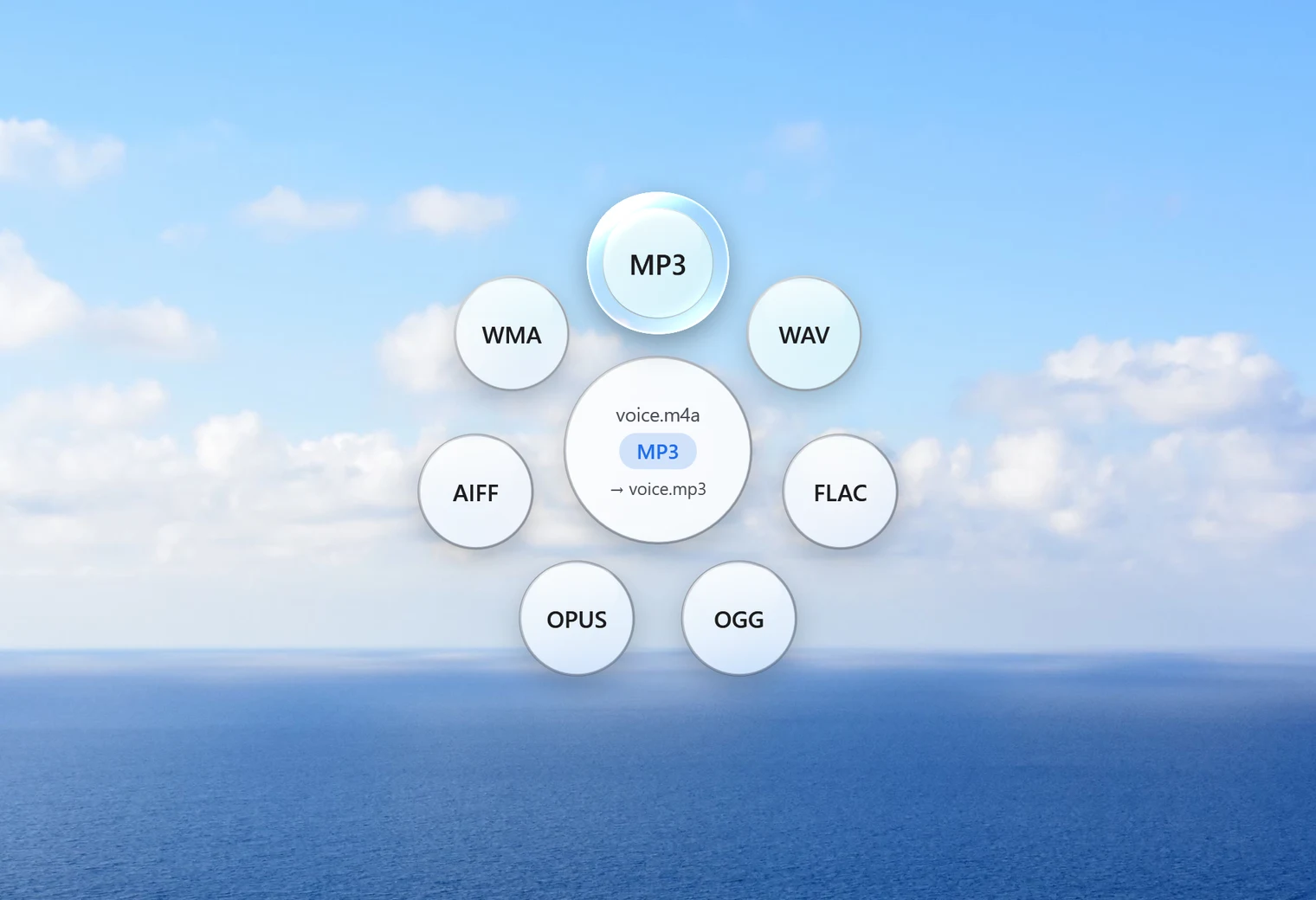
- Tap Shift to open Santra's Convert orbit.
- Drop it on MP3.
The MP3 is saved beside the M4A with the same name, and the M4A stays as it was. If an MP3 with that name already exists, Santra saves "name (2).mp3" rather than overwriting it. Several memos at once? Select them all, drag them together and drop once.
A note on copy-protected songs
Most M4A files convert without trouble. Very old songs bought from the iTunes Store before around 2009 may be copy-protected (they end in .m4p, not .m4a). No ordinary converter can open those, Santra included.
Quality: why the MP3 isn't "better"
AAC inside M4A and MP3 are both compressed formats. Converting from one to the other compresses the sound a second time, so the MP3 can only match the original, never improve on it. Santra uses a high-quality variable bitrate (LAME quality 2) to keep that second step gentle; for voice memos and everyday listening you won't notice it.
If the only reason to convert is that a program won't accept M4A, MP3 is the right choice. If you just want to keep a music library, there's no need to convert at all: keep the M4A files.
Getting voice memos from an iPhone onto Windows
There are several everyday ways to move a voice memo to a PC: share it from the Voice Memos app by email or to a cloud drive, or copy it across with a cable. Whichever you use, check the file name ends in .m4a once it's on the PC; that's the file Santra converts. If you use a cloud drive, make sure the file has actually downloaded to the PC before you drag it.
Converting many memos? Put them in one folder first, then select them all and drop them on MP3 in one go.
Tidy up a voice memo while you're at it
Recorded a meeting or lecture on your phone? Santra's Tools orbit (drag the file, then tap Alt) can Trim it to the part you need, with a waveform to aim by, and Normalize it so a quiet speaker becomes easier to hear. Both keep the original file.
Other ways to convert M4A to MP3
- Audacity: free; it can open M4A with its optional FFmpeg add-on and export MP3. Best when you also want to edit.
- VLC: its Convert/Save menu can produce MP3s, one at a time.
- Online converters: quick for a song, but think twice before uploading private voice memos to a stranger's server.
Santra keeps it to one drag, works on many files at once, and never uploads anything. It runs on Windows 10 and 11.