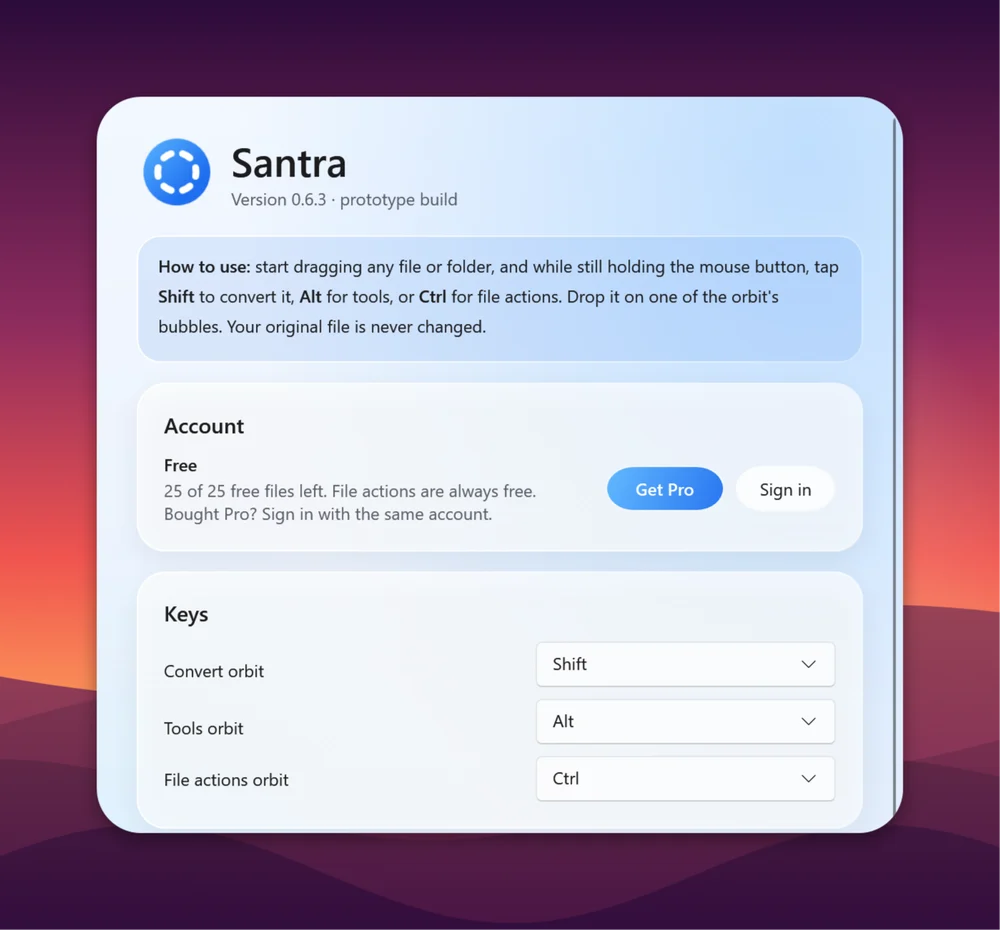
Screenshots are everywhere: in tutorials, product updates, bug reports, slides and social posts. The difference between one that looks thrown in and one that looks designed is rarely talent. It's a handful of small choices you can repeat every time. These eight tips work with any tool; at the end we show how to do most of them in one go on Windows.
1. Crop to the point
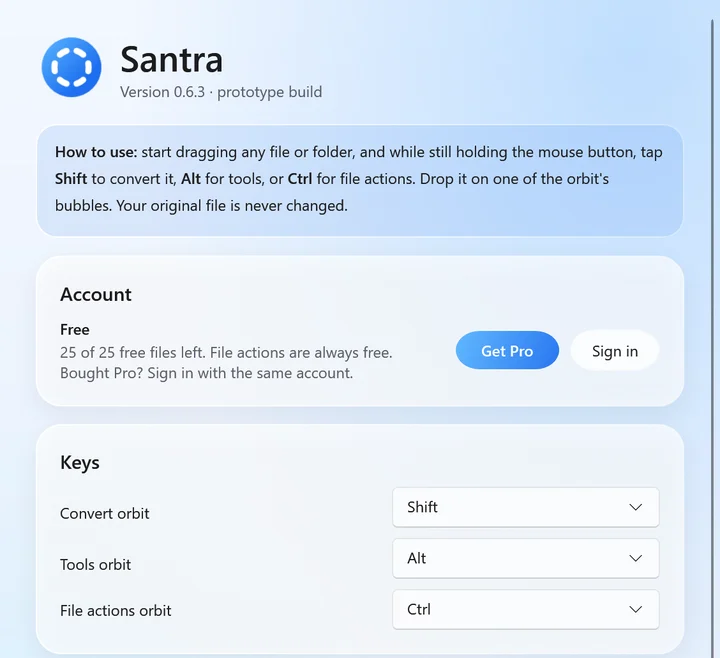
The most common problem is too much: the whole screen when only one button matters. Crop to the part you're talking about and a little context around it. Remove taskbars, bookmarks bars, other tabs and anything private, such as email addresses and names in sidebars. A smaller, focused screenshot is easier to read, especially on a phone.
2. Give it room with padding
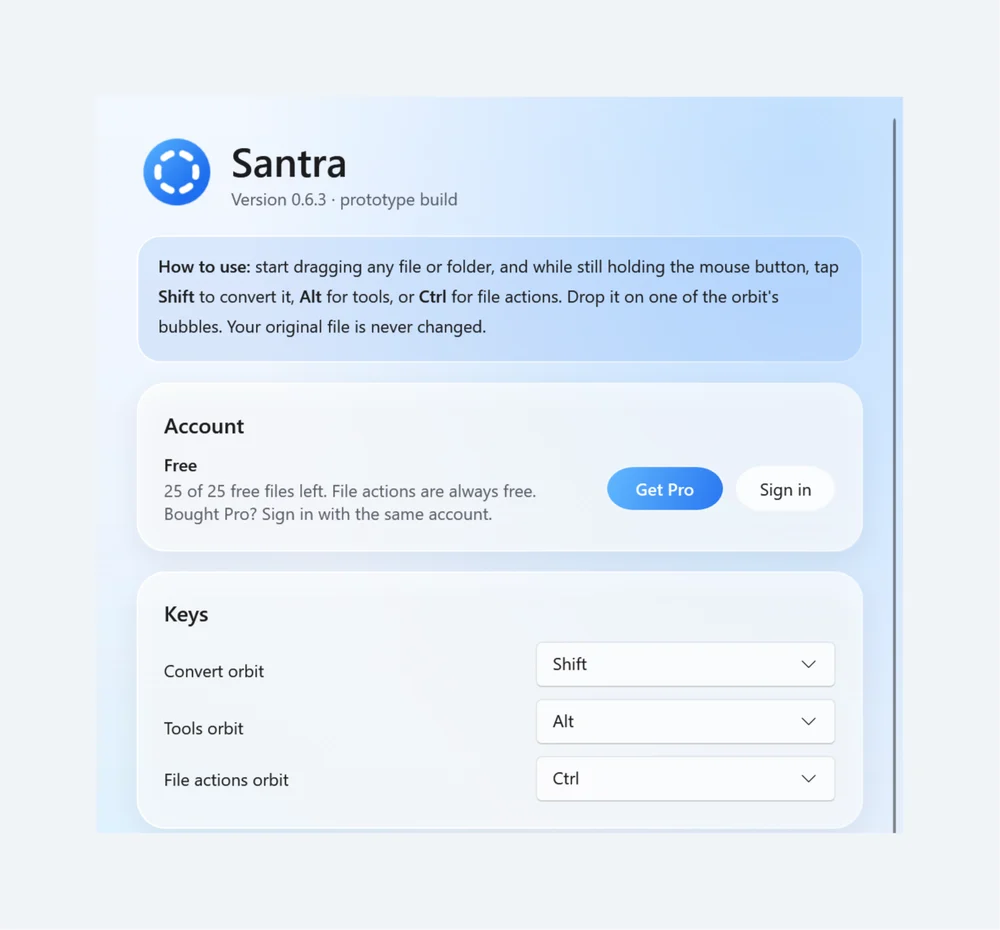
A screenshot pressed against the edge of a slide or post looks cramped. Placing it on a background with some space around it, called padding, instantly makes it feel finished. As a rough guide, leave space equal to about a tenth of the picture's width on every side. More padding looks calmer; less looks busier.
3. Soften the corners
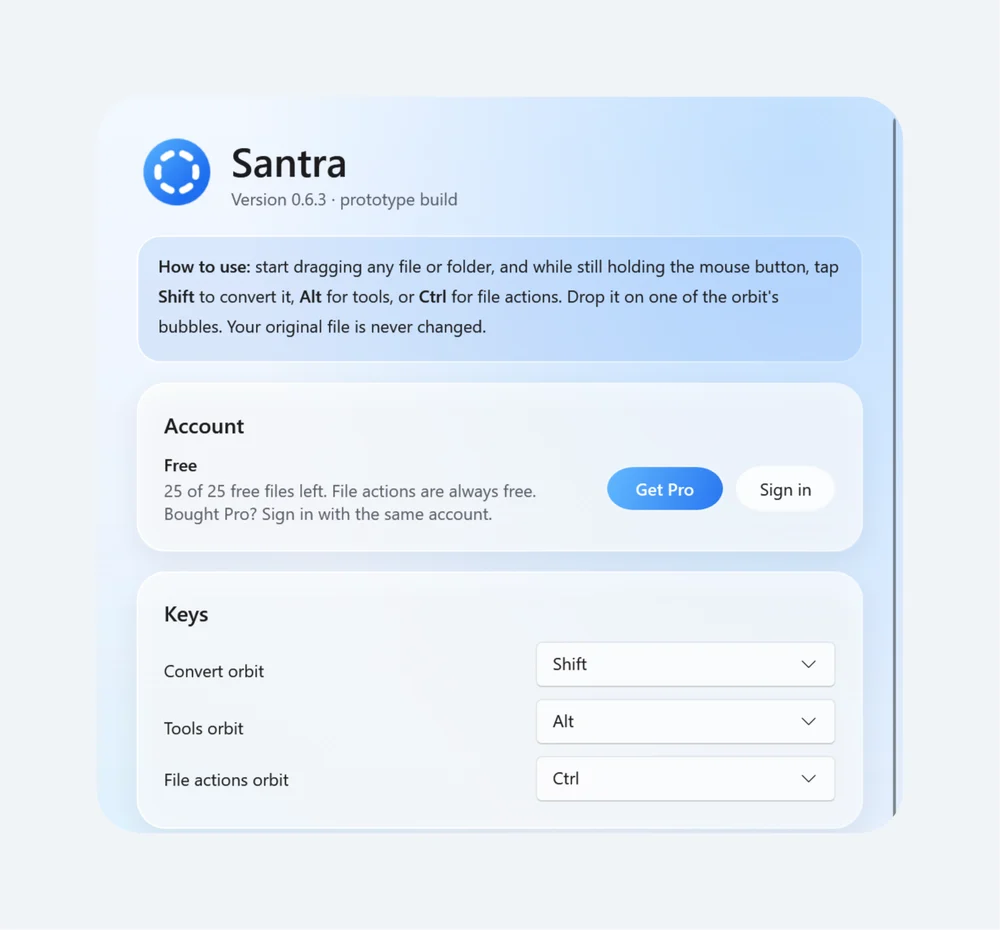
Modern apps, windows and phones all have rounded corners, so a screenshot with sharp square corners can look dated. A small amount of rounding is enough. Too much rounding starts to cut into the content and looks like a sticker.
4. Add a soft shadow
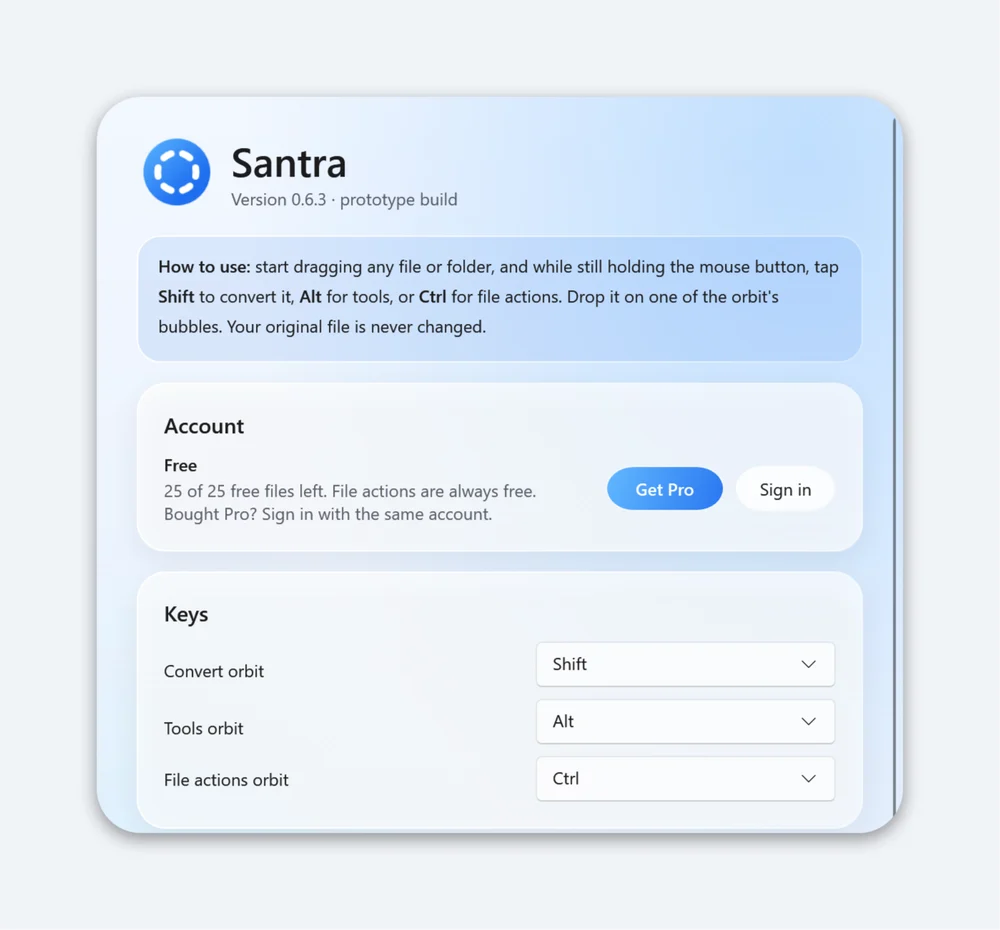
A light shadow under the screenshot separates it from the background and gives a sense of depth, as if the window is floating just above the page. Keep it soft and subtle: a heavy, dark shadow looks old-fashioned and pulls attention away from the content.
5. Choose a background that doesn't fight the content
- Busy screenshot (lots of text, many colours): use a calm gradient or a single soft colour.
- Simple screenshot (one dialog, lots of white): a richer wallpaper can add life.
- Brand material: use your brand colour, or a lighter shade of it, for every picture.
- If a background photo is too busy, blur it so it reads as colour, not detail.
Avoid backgrounds in the same colour as the screenshot's edges (white on white, dark on dark): the frame disappears and the padding stops working.
6. Pick the right shape for where it's going
| Where | Shape that usually fits |
|---|---|
| Slides, blog posts, YouTube, websites | 16:9 (wide) |
| Feeds that favour squares, thumbnails | 1:1 (square) |
| Feeds on phones that allow taller posts | 4:5 (slightly tall) |
| Stories, reels, phone wallpapers | 9:16 (tall) |
Platforms change their recommended sizes now and then, so check the one you're posting to if it matters. The point is to choose the shape on purpose rather than let the platform crop your picture for you.
7. Keep a set consistent
A tutorial with five screenshots looks professional when all five share the same background, padding, corners and shape. Mixing styles makes even good screenshots look amateur. Decide once and apply the same settings to the whole set.
8. Make the file small before you post
Screenshots saved as PNG can be several megabytes. Big files load slowly on websites and can hit upload limits. Saving as JPG or WEBP usually makes them far smaller with no visible difference for screenshots of apps and websites. Keep PNG when you need perfectly sharp text for printing or further editing.
A 30-second checklist before you share
- Is anything private visible: names, email addresses, open tabs, notifications? Crop it out or retake the screenshot.
- Can someone see what you want them to see within a second? If not, crop tighter.
- Is the text readable on a phone? If not, capture a smaller area so it isn't shrunk as much.
- Does it match the other pictures in the post or document: same background, padding and shape?
- Is the file a sensible size for where it's going (a few hundred kilobytes for most web pages)?
Five yeses and your screenshot will look like it belongs. The checklist matters more than any tool: a plain screenshot that passes it beats a fancy one that doesn't.
Doing all of this on Windows
Most of these steps can be done in a design app, one screenshot at a time. Santra does them from File Explorer, for one screenshot or a whole set: drag the files, tap Alt and drop them on a tool.
- CROP chooses the area to keep, and with several pictures crops them all to the same area (tip 1).
- ADD BG places the screenshots on a wallpaper (56 built in), gradient, colour or your own picture, with padding, corner rounding, shadow, background blur and a shape of Auto, 1:1, 16:9, 4:5 or 9:16 (tips 2 to 7). The same settings apply to every file you drop. Our step-by-step guide: how to add a background to a screenshot on Windows.
- COMPRESS makes smaller JPG or WEBP copies and shows the new size first (tip 8). More in compress images on Windows.
Every result is saved next to the original, nothing is overwritten, and nothing is uploaded. Santra doesn't take screenshots or add arrows and text; use Windows' own screenshot tool (Win + Shift + S) to capture, and an editor if you need annotations.