Why is my PDF so big?
Almost always, it's the pictures. A scanned contract, a report full of photos or a PDF made from phone pictures can easily reach tens of megabytes, because each image is stored at full size. Text takes very little space. That's why compressing a PDF mostly means making the pictures inside smaller, and why a PDF that is only text barely shrinks.
How to compress a PDF with Santra
- Find the PDF in File Explorer or on your desktop.
- Start dragging it, and keep holding the mouse button.
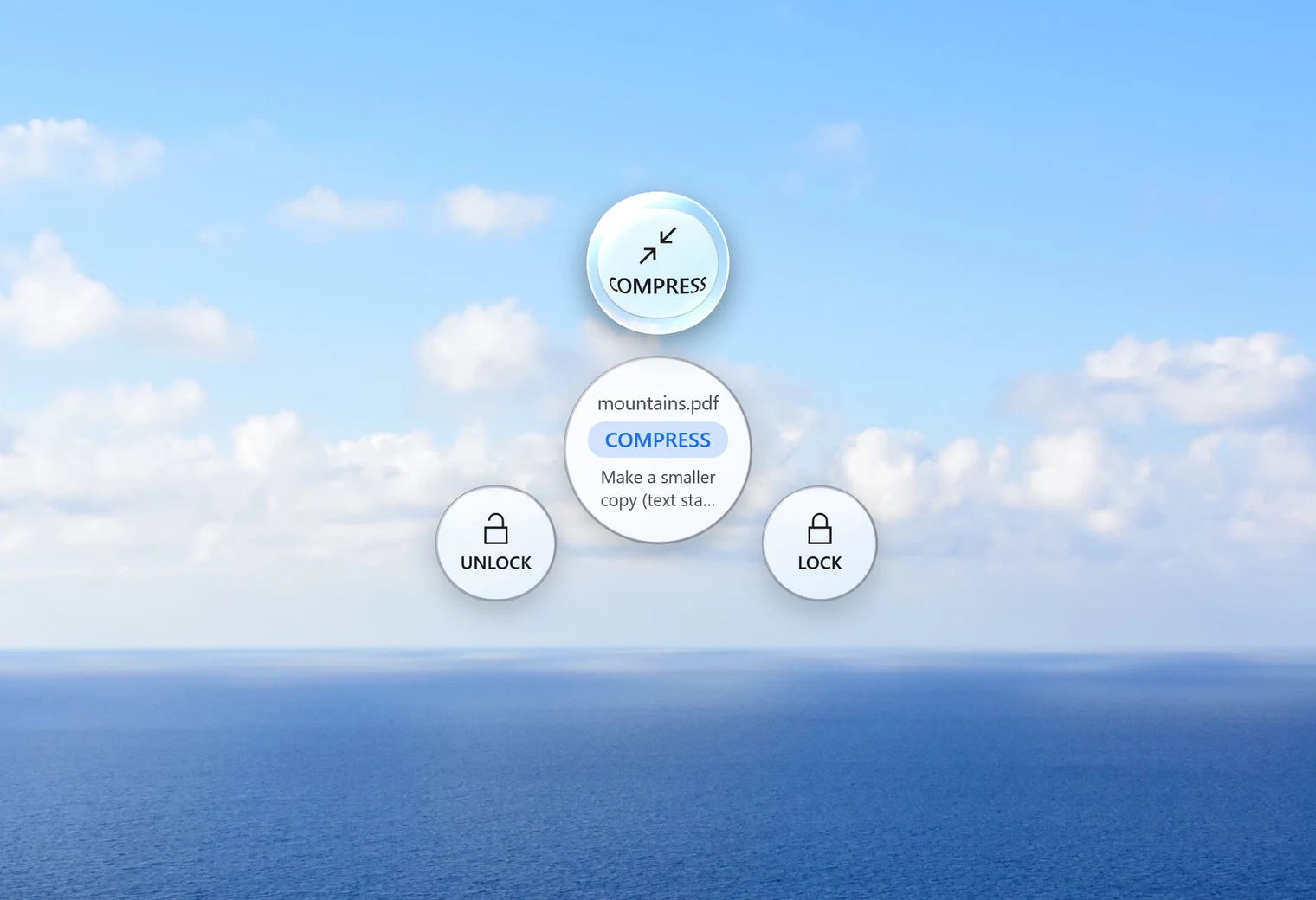
- Tap Alt. Santra's Tools orbit opens, with Compress, Lock and Unlock.
- Drop the PDF on Compress.
There's no window to fill in. Santra saves a smaller copy next to the original, and the original PDF stays exactly as it was. Nothing is ever overwritten: if a file with the new name already exists, the new one gets "(2)" added.
What Santra changes, and what it keeps
- Pictures inside the PDF are re-saved smaller. This is where almost all the saving comes from.
- Fonts are trimmed, so only what the document needs is kept.
- Text stays sharp and selectable. It isn't turned into a picture, so you can still search and copy it.
In our test, a 7.6 MB PDF of photos became 235 KB, and a short text-only PDF went from 21 KB to 11 KB. If compressing would save less than 2%, Santra doesn't make a copy at all: the PDF is already about as small as it can be.
How much smaller will my PDF get?
It depends almost entirely on what's inside:
- Scans and photos: the biggest savings, often many times smaller, because every page is a large picture.
- Reports with some images: a solid saving, depending on how many pictures there are and how big they were to begin with.
- Text only: small savings, mostly from trimming fonts. Sometimes there's nothing worth saving at all.
If you're making a PDF from photos yourself, you can also make the pictures smaller first with Compress image, then drop them on PDF in the Convert orbit (Shift) to get one PDF with a page per picture.
Compress several PDFs at once
Select all the PDFs you want, drag them together, tap Alt and drop them on Compress. Each gets its own smaller copy. Folders themselves can't be dropped, so select the files inside instead.
Password-protected PDFs
A PDF that needs a password to open has to be unlocked first. If you know the password, drop it on Unlock in the same orbit, compress the unlocked copy, and lock it again if you need to.
Other ways to compress a PDF
- Online PDF compressors: easy, but you upload the document to someone else's server. That's worth a second thought for contracts, bank statements or anything with personal details. Free versions often limit file size or how many files you can do each day.
- Adobe Acrobat: the paid version has a "reduce file size" option with lots of settings. The free Acrobat Reader doesn't compress.
- Other desktop apps: a few free offline compressors exist for Windows, though good ones are hard to find, and some ask you to choose technical settings.
Santra is the quick option when you just want a smaller PDF for email or an upload form: one drag, no settings, and the document stays on your PC. It works only on Windows 10 and 11.