You saved a picture from a website and it arrived as .webp instead of the JPG you expected. This page shows how to convert WebP to JPG on Windows in one drag, without uploading anything, for one picture or a few hundred.
Why pictures save as WebP
WebP is a picture format made by Google. Websites love it because the files are small, so pages load faster. When you right-click and save an image, your browser simply saves the file the website sent, and more and more often that's WebP.
The trouble starts afterwards: some older programs, upload forms and photo printers still don't accept WebP, and they ask for JPG instead.
Can I just rename .webp to .jpg?
No. Renaming changes only the ending of the name, not what's inside the file. The picture is still WebP data, so a program that can't read WebP will still fail, or show an error about a broken image. To get a real JPG, the picture has to be converted.
How to convert WebP to JPG with Santra
- Open the folder with your WebP file in File Explorer (or find it on your desktop).
- Start dragging the file, and keep holding the mouse button.
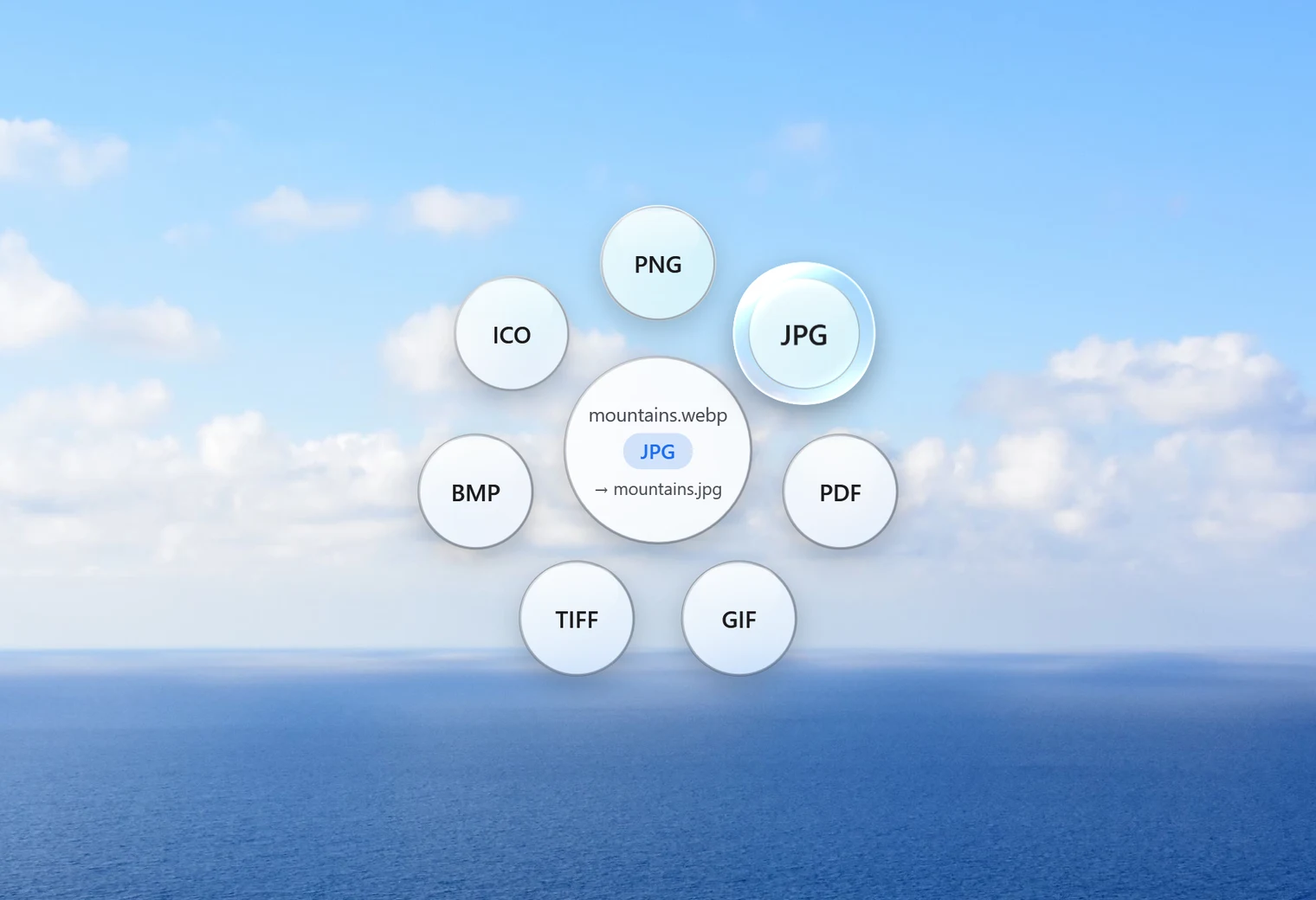
- Tap Shift. Santra's glass orbit opens under your cursor, showing the formats this file can become.
- Drop the file on JPG.
A new file with the same name and a .jpg ending appears next to the original. Your WebP stays exactly as it was, and if a JPG with that name already exists, Santra saves the new one as "name (2).jpg" instead of overwriting it.
Convert many WebP files to JPG at once
Select all the WebP files you want (Ctrl + A selects everything in a folder), drag them together, tap Shift and drop them on JPG. Santra converts every one and shows its progress in a small notification. You can't drop the folder itself, so open it and select the files inside.
What happens to quality and transparency
- Quality: Santra saves the JPG at quality 92 out of 100. That keeps photos looking the same to the eye while the file stays a sensible size.
- Size in pixels: the picture keeps its width and height. Nothing is resized.
- Transparent areas: JPG can't be see-through, so transparent parts of the picture become white, not black. In our test, a logo on a transparent background came out on clean white. If you need to keep the transparency, use WebP to PNG instead.
- Animated WebP: a JPG is a single still picture, so only the first frame is kept.
Other ways to convert WebP to JPG
You don't need Santra for an occasional file. Here are the usual alternatives and what to keep in mind:
- Paint: if your PC can open the WebP, you can open it in Paint and use File, Save as, JPEG picture. It works, but only one file at a time.
- Photos: the Photos app can also save a copy in another format, again one picture at a time.
- Online converters: free and quick, but your picture is uploaded to someone else's server. Fine for a meme, not great for private photos or work documents. Our guide on whether online converters are safe explains what to look out for.
- Image editors such as GIMP can export to JPG too, with more settings, but they take longer for a simple change of format.
Santra is the quickest when it's something you do often: no app to open, no menus, and many files at once. It works only on Windows 10 and 11. Not sure JPG is the right choice? See WebP vs JPG vs PNG.