Why compress a picture?
Photos from phones and cameras are often several megabytes each. That's fine on your PC, but upload forms, email and chat apps prefer smaller files, and a folder of big photos fills a drive quickly. Compressing an image makes a smaller copy that looks almost the same to the eye.
How to compress an image with Santra
- Find the picture in File Explorer or on your desktop.
- Start dragging it, and keep holding the mouse button.
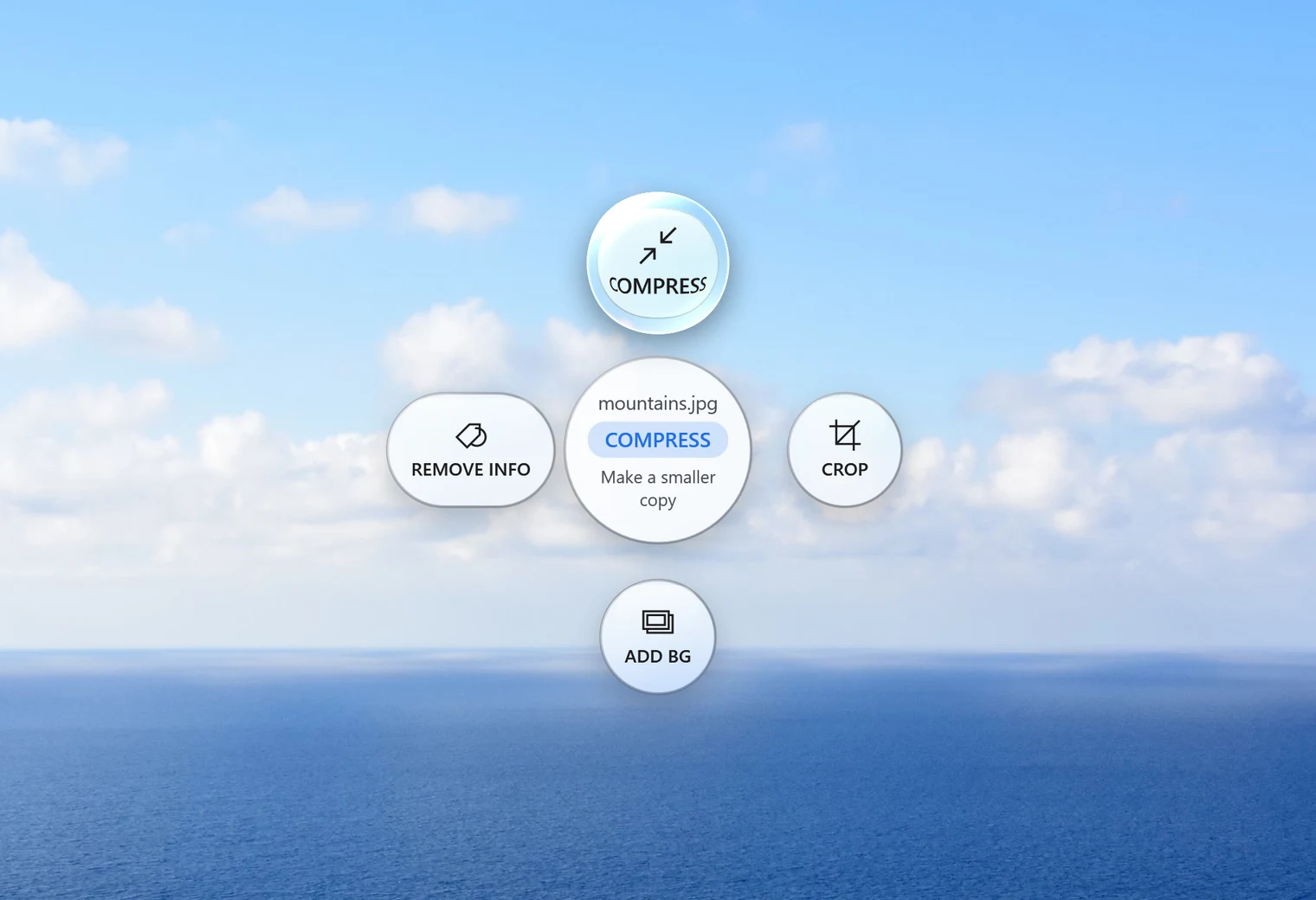
- Tap Alt. Santra's Tools orbit opens under your cursor.
- Drop the picture on Compress. A small window opens.
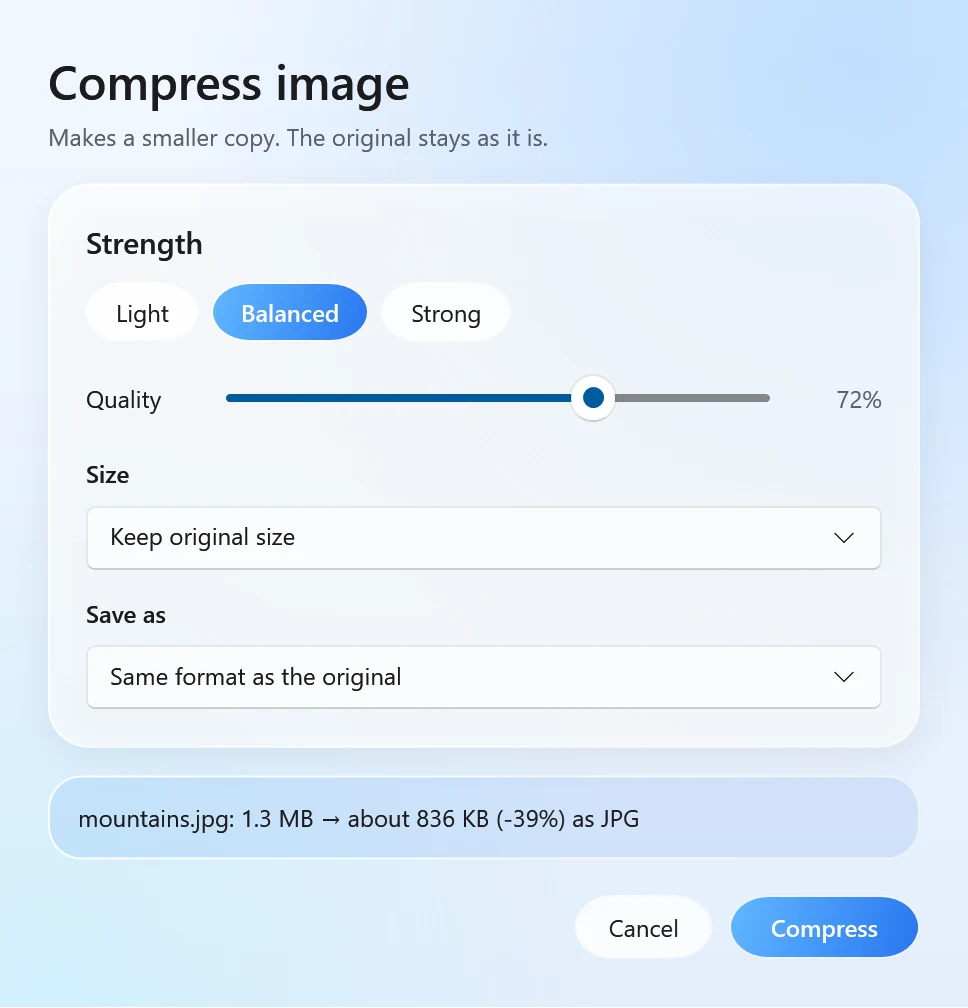
- Pick a preset or move the quality slider, check the new size, and click Compress.
The smaller copy is saved next to the original as name compressed.jpg (or .png / .webp). Your original stays exactly as it was, and nothing is ever overwritten.
The settings, in plain words
- Light, Balanced or Strong: three quick presets. The quality slider (10 to 100%) lets you choose anything in between. Lower quality means a smaller file.
- Size: keep the original size, or shrink the longest side to 4K (3840 px), 2560, 1920, 1280 or 800 pixels. Shrinking a big photo saves the most space.
- Save as: the same format as the original, JPG, or WEBP. WEBP usually gives the smallest file.
In our test, a 904 KB photo became 373 KB as a JPG at 70% quality, and 123 KB as a WEBP at 70% resized to 1600 pixels. Your own results depend on the picture.
Compress many images at once
Select all the pictures you want (Ctrl + A selects everything in a folder), drag them together, tap Alt and drop them on Compress. One set of settings applies to every picture, and each gets its own smaller copy. Folders themselves can't be dropped, so select the files inside instead.
Does compressing lose quality?
JPG and WEBP compression throw away detail you mostly can't see, so a small loss is the price of a smaller file. At Balanced or higher it's usually invisible on screen. PNG is different: it keeps every detail, so only resizing makes a PNG smaller. Santra tells you this in the window, and suggests JPG or WEBP if you need a much smaller file. Transparent areas become white when saved as JPG, because JPG can't be see-through.
Which settings for which job
- Email or a chat app: Balanced, resized to 1920 or 1280 pixels. Photos still look sharp on any screen and the files are a fraction of the size.
- An upload form with a size limit: start with Balanced and watch the new size. If it's still too big, pick a smaller pixel size or move the slider down until it fits.
- Your own website: WEBP is usually the smallest, and every modern browser shows it.
- Logos and pictures with see-through parts: keep PNG (or choose WEBP, which can stay see-through) and shrink the pixel size, because JPG fills transparent areas with white.
- Printing: keep the original size and use Light, so no detail is lost on paper.
Not sure which format suits you? Our guide to WebP vs JPG vs PNG explains the differences in plain words.
Other ways to compress images on Windows
- Photos app: Windows 11's Photos can resize a picture and save it with a lower quality. Good for one photo at a time.
- Paint: resize with Ctrl + W, then save. Simple, but one file at a time and few choices.
- PowerToys Image Resizer: Microsoft's free add-on resizes many pictures from the right-click menu. It's about pixel size rather than file size, but shrinking pixels does make files smaller.
- Online compressors: quick and free, but your photos are uploaded to someone else's server, and many have limits on how many files you can do.
Santra fits when you compress pictures often: no app to open, a live size check, many files at once, and everything stays on your PC. It works only on Windows 10 and 11.