When you only want the sound
A lecture you want to hear on a walk, a song from a concert clip, a voice memo that your phone saved as a video, a podcast recorded on camera: plenty of MP4 files are really about the audio. Converting MP4 to MP3 gives you a much smaller file that plays in every music app, car stereo and phone.
How to convert MP4 to MP3 with Santra
- Find the video in File Explorer or on your desktop.
- Start dragging it and keep holding the mouse button.
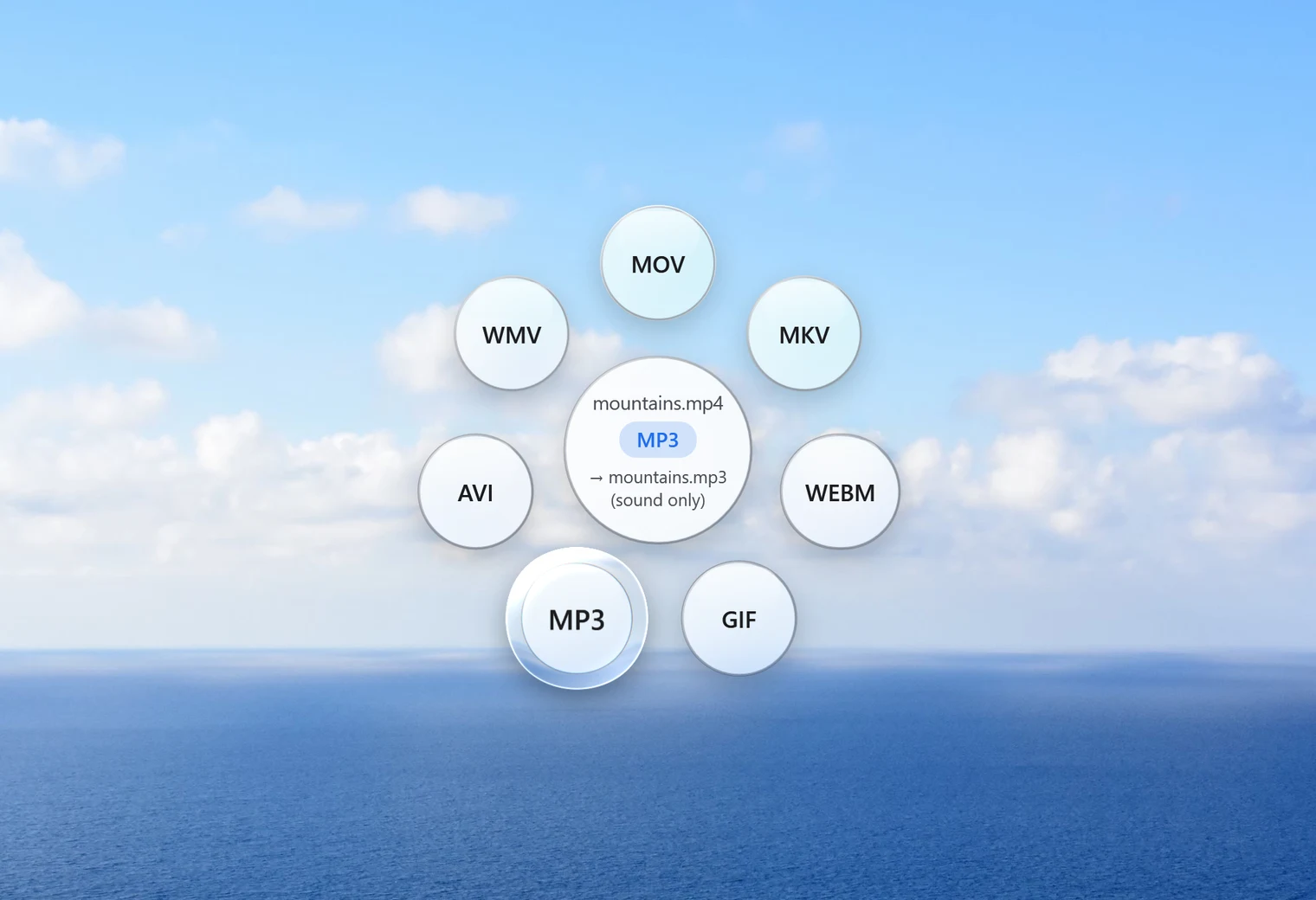
- Tap Shift. Santra's Convert orbit opens under your cursor.
- Drop the file on MP3.
A small notification shows the progress, with a Cancel button. When it's done, an MP3 with the same name sits next to the video. The video itself isn't touched, and if an MP3 with that name already exists, the new one is saved as "name (2).mp3" rather than replacing it.
It's quick, because only the sound has to be processed. In our test, a 40-second clip became an MP3 in under a second.
Convert many videos to MP3 at once
Select all the videos you want (Ctrl + A selects everything in a folder), drag them together, tap Shift and drop them on MP3. Each one gets its own MP3. Santra handles any mix of video formats here, not just MP4: MOV, MKV, WEBM, AVI, WMV and more can all go to MP3 the same way.
What about quality?
Santra saves high-quality variable-bitrate MP3 (LAME quality 2). In plain words: the encoder spends more data on busy, detailed parts of the sound and less on quiet parts, which keeps music and speech sounding clean without wasting space.
One honest point: the sound inside most MP4 files is already compressed (usually as AAC). Turning it into MP3 compresses it again, so it can't sound better than the original. At this quality setting you're unlikely to hear a difference in everyday listening.
For videos, MP3 is the one sound-only choice in the orbit. Once you have the MP3, the same gesture on that audio file offers M4A, WAV, FLAC, OGG, OPUS, AIFF and WMA, if a program asks for one of those.
Only want part of the sound, or a steadier volume?
Santra's Tools orbit (drag the file and tap Alt) has two helpers for the MP3 you just made:
- Trim keeps just one part, such as a single song from a long concert recording. A waveform shows where the loud and quiet bits are, so you can aim.
- Normalize evens out the loudness, which helps with recordings that are too quiet or jump between soft and loud. It saves in the same format.
You can also trim the video before converting it, with Trim video. Either way, the original files are kept.
Other ways to get MP3 from a video
- VLC: the free media player has a Convert/Save option that can save audio as MP3. It works well, but the menus take a few minutes to learn.
- Audacity: the free audio editor can open many videos (with an add-on) and export MP3. Handy if you also want to edit the sound.
- Online converters: fine for a public clip, but the whole video is uploaded first, which is slow for big files and not ideal for private recordings. Many also cap the file size.
Santra fits when you do this often or with many files: no app to open, no settings to dig through, and nothing leaves your PC. It runs on Windows 10 and 11.