Why videos get so big
Phones and screen recorders save video at high quality, so a few minutes can take hundreds of megabytes. That's too big for most email (many services cap attachments somewhere around 20 to 25 MB) and slow to send in chat apps. Compressing makes a copy with fewer bits per second and, if you like, fewer pixels, which shrinks the file a lot.
How to compress a video with Santra
- Find the video in File Explorer or on your desktop.
- Start dragging it, and keep holding the mouse button.
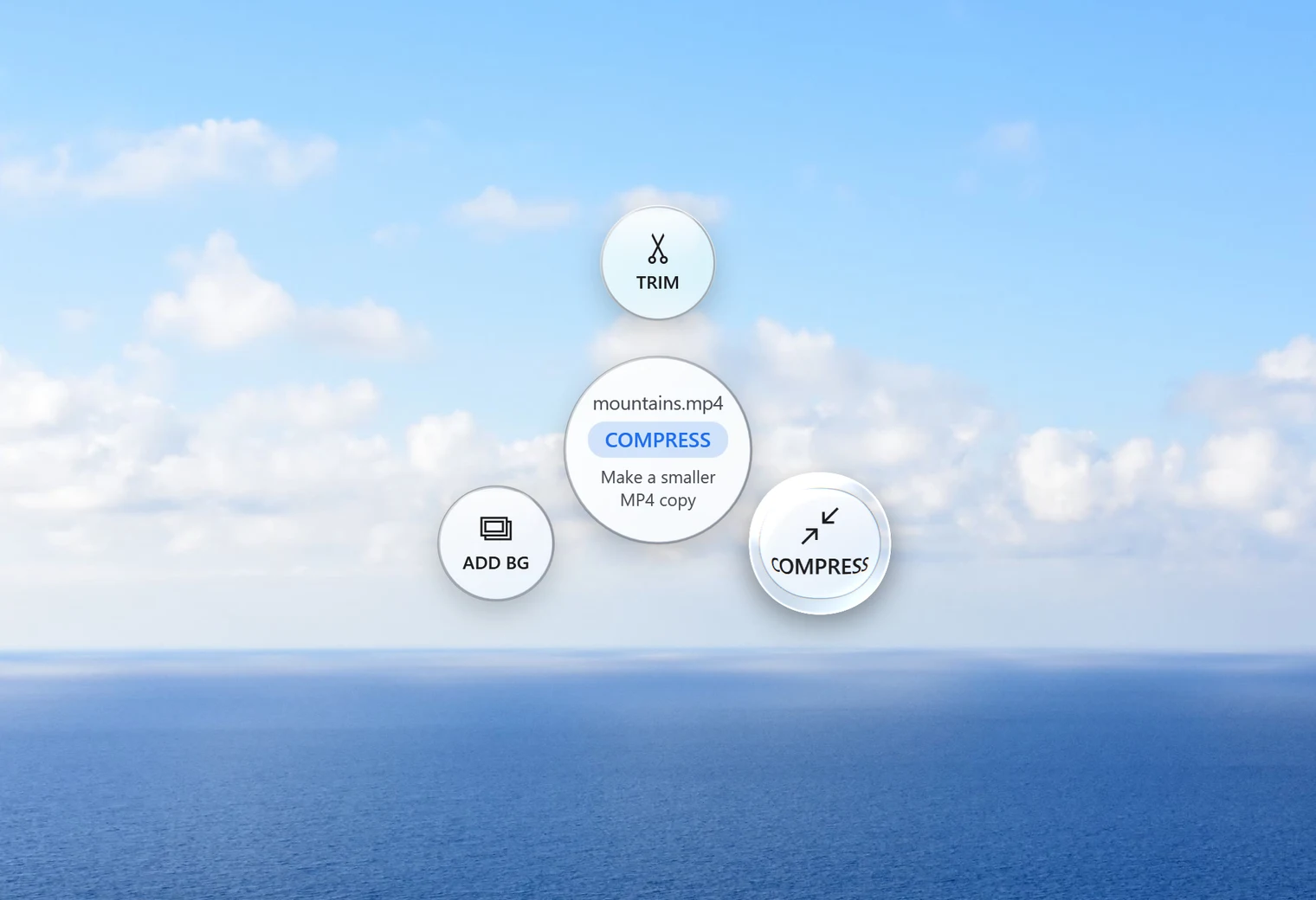
- Tap Alt. Santra's Tools orbit opens under your cursor.
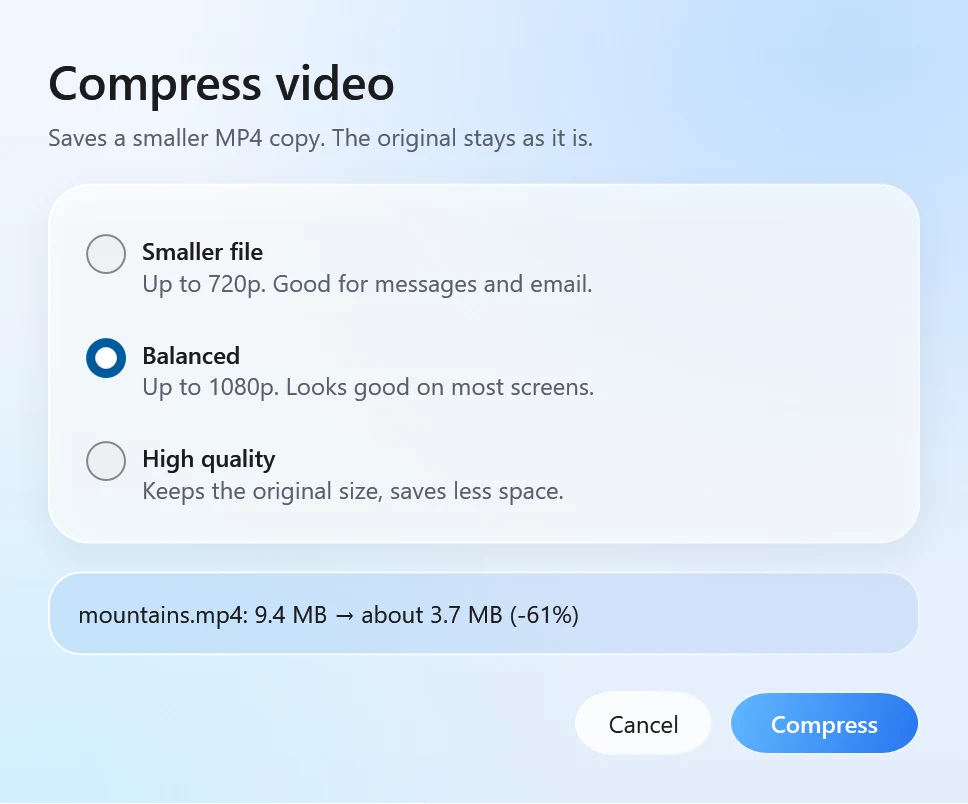
- Drop the video on Compress. A small window opens and works out the expected size.
- Pick one of the three choices and click Compress.
Santra saves the result next to the original as name compressed.mp4. The original video isn't changed, and nothing is ever overwritten.
Which choice to pick
| Choice | Picture size | Good for |
|---|---|---|
| Smaller file | Up to 720p | Messages and email |
| Balanced | Up to 1080p | Looks good on most screens |
| High quality | Original size | Keeping detail; saves less space |
In our test, a 40-second 1080p clip of 31 MB became 18 MB with Balanced (still 1080p) and 5 MB with Smaller file (720p). How much you save depends on the video: a shaky phone clip full of detail shrinks less than a calm screen recording.
What you get
- An MP4 with H.264 video, the format almost every phone, browser and chat app plays.
- The sound is kept.
- Any common video works as input, such as MP4, MOV, MKV, AVI or WEBM, and the result is always MP4.
Several videos? Select them, drag them together, tap Alt and drop them on Compress: each gets its own smaller copy.
Tips for the smallest file
- Cut first. Every second you don't need is space you don't send. Use Trim in the same orbit, then compress the trimmed clip.
- Use Smaller file for phones and chats. Most people watch shared videos on a phone, where 720p looks perfectly sharp.
- Keep High quality for keeping. For videos you're archiving or editing later, High quality keeps the original size and still saves some space.
- Only need a short loop? For a few silent seconds to post or embed, a GIF may suit better: MP4 to GIF. If only the sound matters, MP4 to MP3 gives a tiny file.
Other ways to compress a video on Windows
- Clipchamp: the video editor that comes with Windows 11 can export at a lower resolution, such as 720p or 480p. It works, but it's a whole editor for a simple job.
- HandBrake: free, offline and very capable, with dozens of settings. Great if you like control; a lot to learn if you just want a smaller file.
- Online compressors: no install, but big videos take a long time to upload, free versions usually cap the file size, and your video sits on someone else's server.
Santra is the shortest path: three plain choices, a size estimate, and the video never leaves your PC. It works only on Windows 10 and 11.