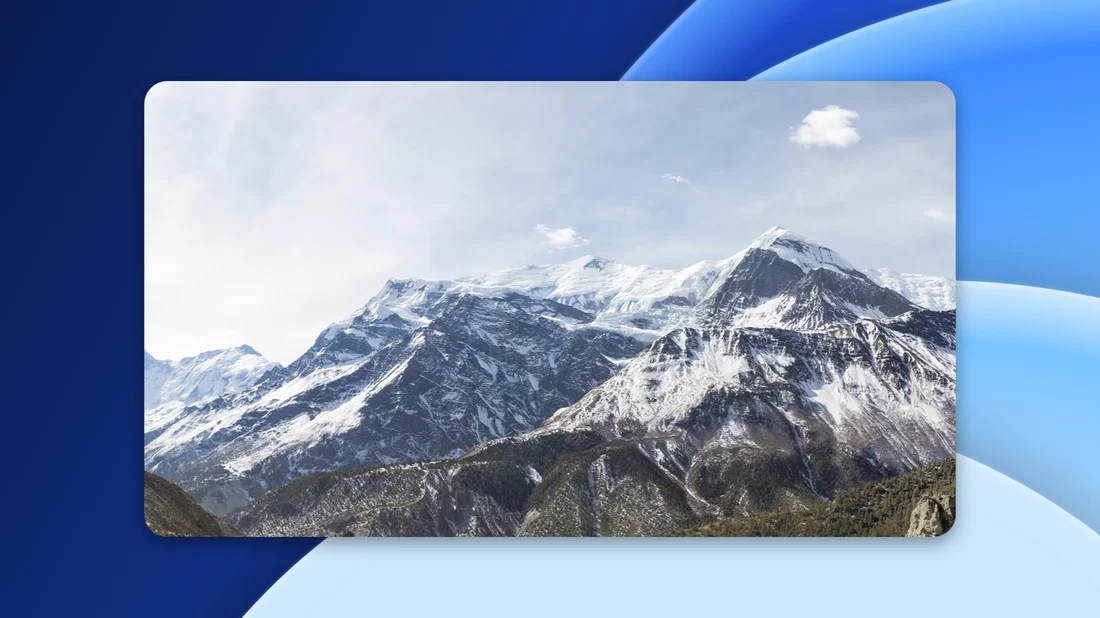
Screen recordings are the clearest way to show how something works: a new feature, a bug, a quick how-to. But a raw recording of a whole screen, edge to edge, looks rough when you post it next to polished content. The trick product teams use is simple: shrink the recording a little, round its corners, give it a shadow and put it on a nice background. It suddenly looks like a product video instead of a capture. Usually that means a video editor and a timeline. Here's a quicker way on Windows.
Step 1: Record your screen
Use whatever you already have. On Windows 11, the built-in Snipping Tool can record the screen. Other common choices are the Xbox Game Bar (it records one app window at a time, not the desktop) and free recorders such as OBS. Save the recording as a video file, for example MP4.
Tip: record only the window or area you need. A smaller recording looks sharper once it's framed, and the file is smaller.
What makes a recording worth framing
- Tidy screen: close unrelated windows, hide desktop clutter and turn off notifications before recording, so nothing private pops up.
- Bigger text: zoom the app or browser in a little (Ctrl and plus in most apps). After framing, the recording is shown smaller, so larger text stays readable.
- Steady pace: move the mouse calmly and pause briefly after each click, so viewers can follow.
- Short and focused: one task per clip. Several short clips are easier to watch than one long one.
Step 2: Put it on a background with Santra
- Find the recording in File Explorer.
- Start dragging it, and keep holding the mouse button.
- Tap Alt to open Santra's Tools orbit, and drop the video on ADD BG.
- In the window that opens, choose the background and the frame, then click Save video with background.
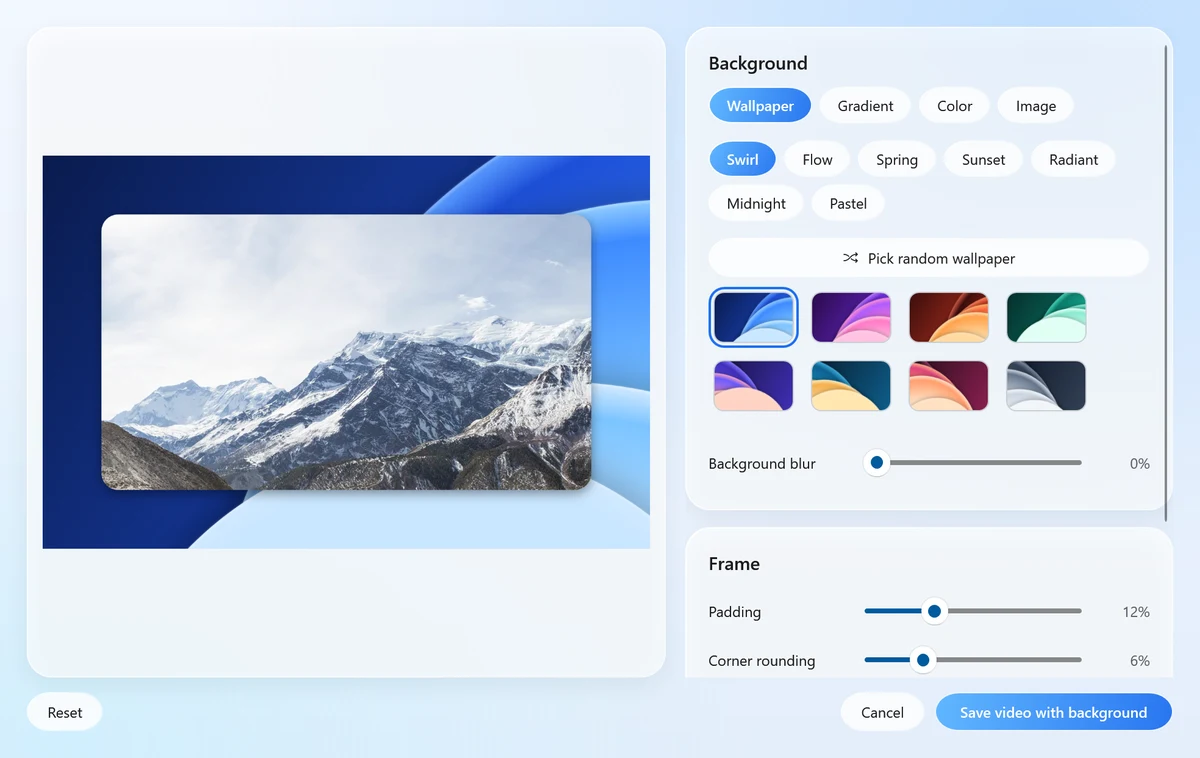
Santra shows a frame from your recording as the preview, so you can judge the look before saving. The finished video is saved as an MP4 next to the original, with the sound kept. Your original recording isn't touched. A progress notification with a Cancel button shows while it works, since a video takes longer than a picture.
Choosing the look
- Background: one of 56 built-in wallpapers in 7 styles, a gradient, a single colour, or your own picture.
- Padding: how much background shows around the recording.
- Rounded corners: softens the edges so it looks like a modern app window.
- Shadow: lifts the recording off the background.
A good starting point: a calm gradient or a dark wallpaper, medium padding, light rounding and a soft shadow. Dark backgrounds tend to suit light apps and the other way round. The same advice as for still pictures applies; we wrote it up in how to make screenshots look professional.
Step 3: Make it ready to share
- Too long? Cut it down first with Trim (Tools orbit), which keeps just the part you choose. Trim shows frames of the clip to aim by; it doesn't play the video yet.
- Too big to send? Use Compress afterwards for a smaller MP4, with a size estimate before you start. See how to compress a video for Discord, WhatsApp or email.
- Want it to play silently in a post or a README? Turn it into a GIF: how to make a GIF from a screen recording.
Several recordings with the same style
Making a series of clips for a launch or a course? Select all the recordings, drag them together, tap Alt and drop them on ADD BG once. The same background and frame are used for each, so the set looks consistent.
Other ways to do it
- Video editors (Clipchamp, DaVinci Resolve and others): put a background on one track and the recording on another, then scale and position it. Flexible, and you can add zooms and captions, but it takes a while for each clip.
- Dedicated recording apps that add backgrounds while you record exist, many of them for Mac. They do more, such as automatic zooms and cursor effects.
Santra fits when you already have the recording and just want it framed nicely on Windows, without learning an editor. It works offline and never uploads your video. It doesn't record the screen, zoom or add captions.