Why your iPhone photos are HEIC files
iPhones save photos as .heic (short for High Efficiency Image Container). The files are about half the size of a JPG of the same quality, which is why Apple uses them. The trouble starts when you copy the photos to a Windows PC: many programs, websites, upload forms and photo printers don't accept HEIC, and often Windows itself won't open them.
Why Windows often can't open HEIC
To show a HEIC photo, Windows needs two add-ons from the Microsoft Store: HEIF Image Extensions, which is free, and HEVC Video Extensions, which costs about US$0.99 unless your PC maker included it. Without both, the Photos app asks for an extension and the file shows a blank icon.
Santra doesn't depend on those add-ons. When Windows can't read a HEIC photo, Santra decodes it itself, using the video library it already includes. There's nothing extra to install and nothing to buy.
How to convert HEIC to JPG with Santra
- Open the folder with your iPhone photos in File Explorer.
- Start dragging a photo, and keep holding the mouse button.
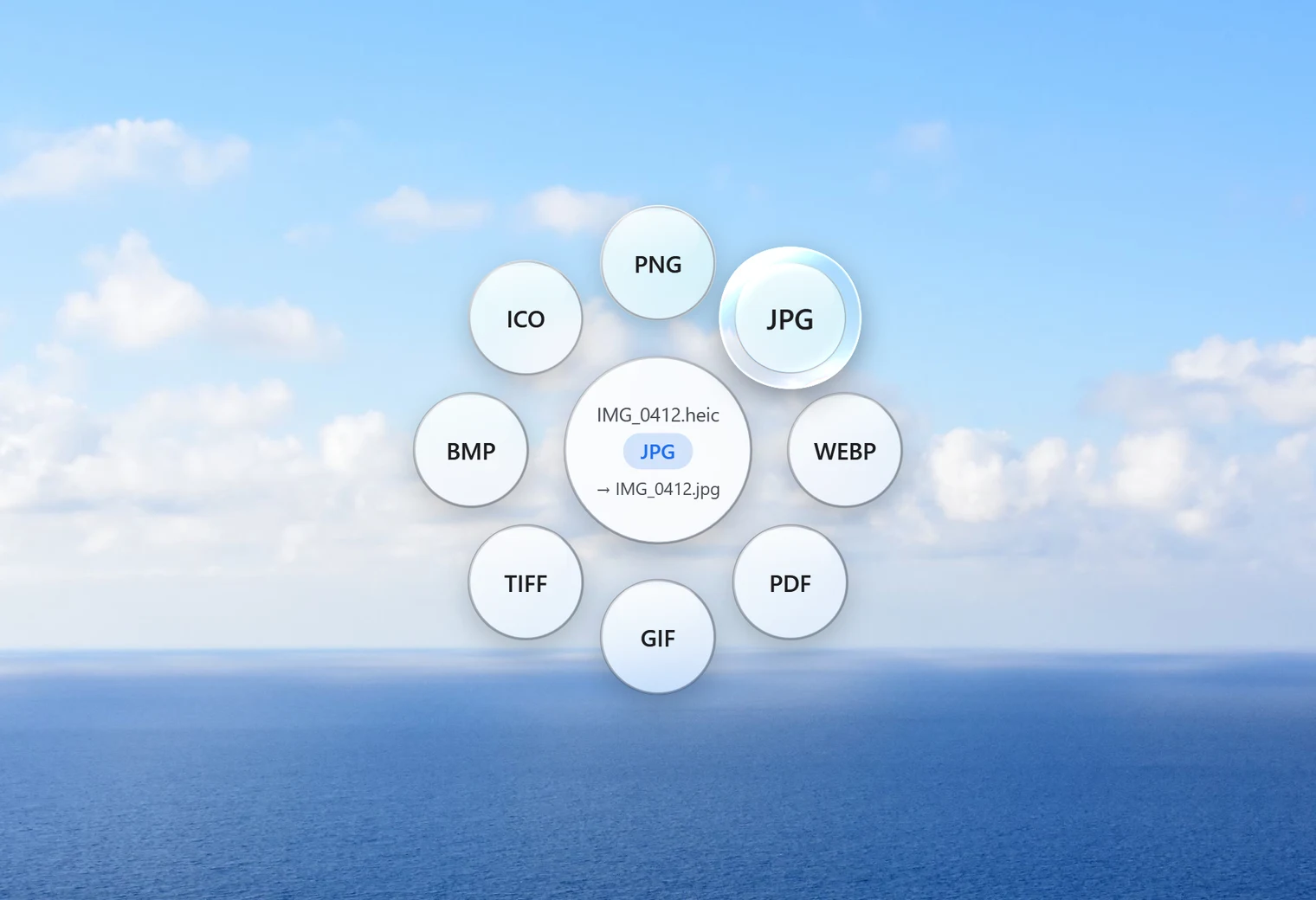
- Tap Shift. Santra's Convert orbit opens under your cursor.
- Drop the photo on JPG.
The JPG appears next to the original with the same name, so IMG_0412.heic becomes IMG_0412.jpg. The HEIC file stays as it was, and if a JPG with that name already exists, the new one is saved as "IMG_0412 (2).jpg" instead of overwriting it.
Convert a whole camera roll at once
After copying photos off a phone you usually have hundreds. Select them all (Ctrl + A selects everything in a folder), drag them together, tap Shift and drop them on JPG. Santra converts every one and shows its progress in a small notification. Large photos take a moment each: in our test, a 45-megapixel HEIC took about 2 seconds to open.
What to expect from the JPG
- Quality: Santra saves JPG at quality 92 out of 100, which keeps photos looking the same to the eye. The JPG is usually larger than the HEIC, because JPG is an older, less efficient format.
- Size in pixels: nothing is resized. A 12-megapixel photo stays 12 megapixels.
- Right way up: photos taken sideways are turned upright before saving.
- Hidden details: the JPG doesn't carry over the date taken, the camera details or the GPS location. That's good for privacy when you share photos, but photo apps that sort by "date taken" will use the file's date instead. Keep the HEIC originals if those details matter to you.
Other ways to deal with HEIC on Windows
- Change the iPhone setting: in Settings, Camera, Formats, choose Most Compatible and new photos are taken as JPG. It doesn't change photos you already have, and the files are bigger.
- Let the iPhone convert when copying: in Settings, Photos, set "Transfer to Mac or PC" to Automatic. Photos copied over a cable then often arrive as JPG.
- Photos app with both extensions: install HEIF Image Extensions and buy HEVC Video Extensions, then open each photo and save it as JPG. It works, one photo at a time.
- Online converters: free and quick, but your personal photos are uploaded to someone else's server. Read are online file converters safe? before using one for family pictures.
Santra is the simplest if you have many photos or don't want to buy an extension: one drop, the whole folder, nothing uploaded. It runs on Windows 10 and 11. Need transparency or a lossless copy instead? Use HEIC to PNG.