When you search for a way to convert a file, most results are websites. You upload the file, wait, and download the result. That is fine for a meme. It is less fine for a passport scan, a contract or a long family video. Those have to travel to a stranger's server and back. Programs that run on your own PC skip the upload entirely. They also tend to cope better with big files and with dozens of files at once.
Here are five Windows programs worth knowing, what each is genuinely good at, and where each falls short. Facts about each program come from its own website, checked on 22 October 2026. Where a website doesn't say something, we say so rather than guess.
At a glance
| Program | Best for | Price |
|---|---|---|
| File Converter | Quick everyday conversions from the right-click menu | Free, open source |
| PDF24 Creator | Everything PDF | Free, including for business use |
| HandBrake | Video, with fine control over quality | Free, open source |
| XnConvert | Batch-editing large numbers of images | Free for personal use; paid licence for companies |
| Santra | Pictures, video, audio and documents with one drag-and-drop gesture | 25 files free, then US$19 once |
1. File Converter: free, from the right-click menu
File Converter, by Adrien Allard, adds conversion choices to the menu you get when you right-click a file in File Explorer. It handles images, video and audio, and can turn Office files and images into PDF. The presets in the menu can be edited, so you can make the menu match the formats you actually use. It's free and open source (GPL v3), and its site says it has no ads or data collection.
Keep in mind: converting Office documents needs Microsoft Office installed and activated. Its site doesn't explicitly say whether it works offline, though it runs as a program on your PC.
2. PDF24 Creator: the free PDF toolbox
PDF24 Creator is a Windows 10 and 11 program for PDFs. It turns Word, Excel, images and anything printable into PDF, and comes with a long list of PDF tools. It also adds a virtual PDF printer, so any program's Print button can make a PDF. Its site says it is free for private and commercial use, works offline, and doesn't upload your files.
Keep in mind: it is focused on PDFs and documents, so it isn't the tool for video or audio.
3. HandBrake: the free video specialist
HandBrake is a free, open-source video converter made by volunteers, for Windows, Mac and Linux. It reads nearly any video and saves MP4, MKV or WebM, with detailed quality settings, presets and a command-line version for automation. If you care about exactly how a video is encoded, it gives you more control than anything else here.
Keep in mind: all those settings take time to learn, and it is for video only. Its site says it won't open copy-protected files or many commercial discs.
4. XnConvert: batch images by the hundred
XnConvert reads over 500 image formats and writes about 70. It can chain more than 80 actions, such as resizing, cropping and colour changes, over whole folders, and it can watch a folder and process new pictures as they arrive. It's free for private, educational and non-profit use; companies need a paid licence.
Keep in mind: it's for images only, and the many options mean it works best when you set up a job once and reuse it.
5. Santra: one gesture for every kind of file
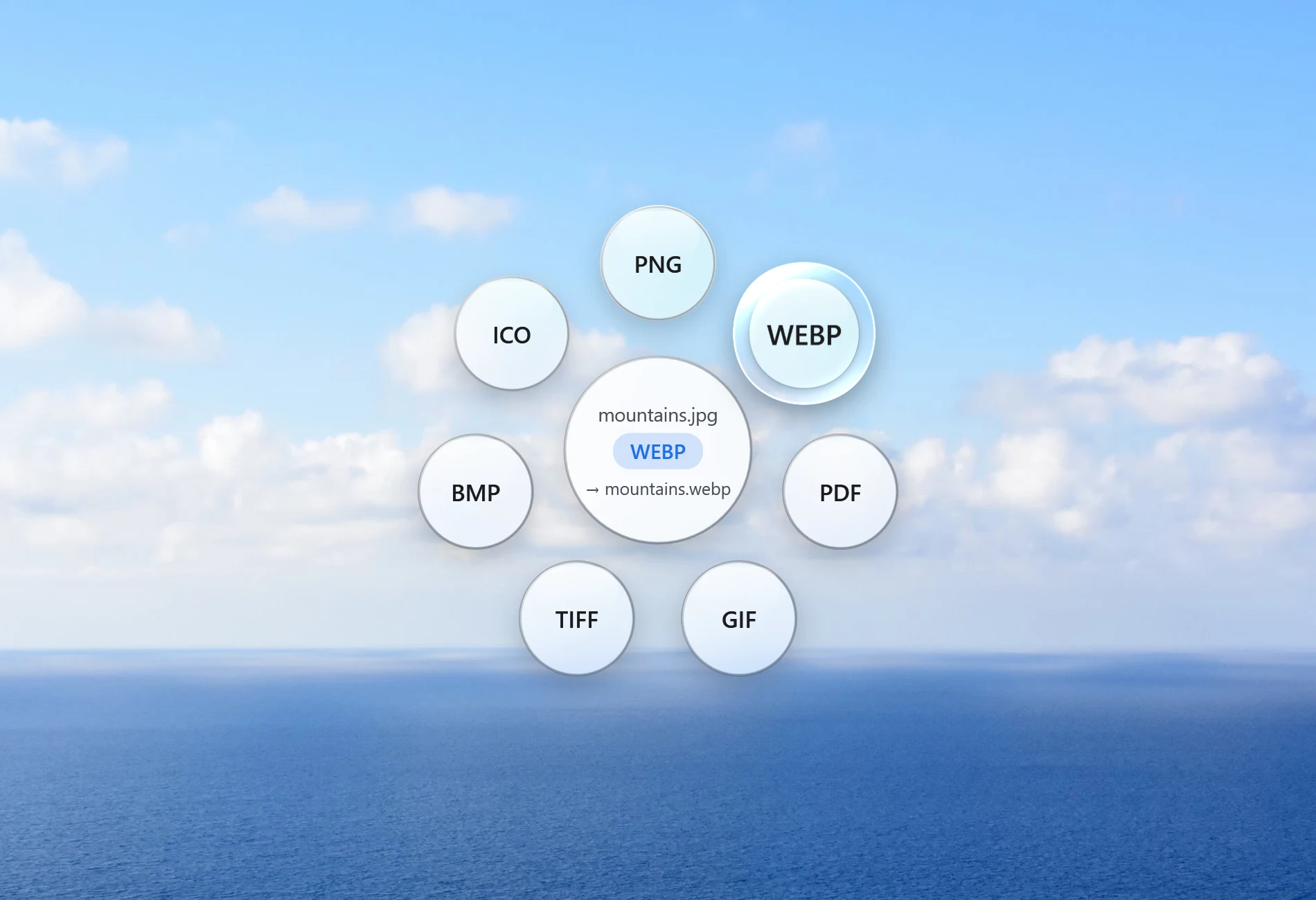
Santra is the one we make, so take this section with that in mind. Instead of opening a program, you start dragging a file, tap a key, and drop it on an option that appears under the cursor. Shift shows formats to convert to, Alt shows tools such as compress, crop, trim, merge and lock, and Ctrl shows file actions.
- Pictures: PNG, JPG, WEBP, GIF, TIFF, BMP, ICO and PDF, including iPhone HEIC photos.
- Video and audio: MP4, MOV, MKV, WEBM, MP3 and more. Many container changes, such as MKV to MP4, are copied in seconds without re-encoding.
- Documents: Word, Excel and PowerPoint to PDF, and PDF to pictures, text or Markdown.
- Everything runs offline, and the original file is never changed or overwritten.
Keep in mind: it runs only on Windows 10 and 11 (64-bit). It deliberately doesn't convert PDF to Word and has no OCR. After the first 25 conversions or tools it costs a one-time US$19 for up to 3 PCs.
And the converters already on your PC
For a single file you may not need anything new. Paint and the Photos app can open a picture and save it in another format. Any program that can print can save a PDF through Microsoft Print to PDF. These built-in options are free and private, but they work one file at a time.
So which should you pick?
- Mostly PDFs: PDF24 Creator.
- Video and you like tweaking settings: HandBrake.
- Hundreds of images with the same edits: XnConvert.
- Quick everyday formats without spending money: File Converter.
- A bit of everything, as quickly as possible: Santra. See it in action for HEIC to JPG, MKV to MP4 or compressing a PDF.
Plenty of people end up with two of these: a specialist for the job they do most, and something quick for everything else.