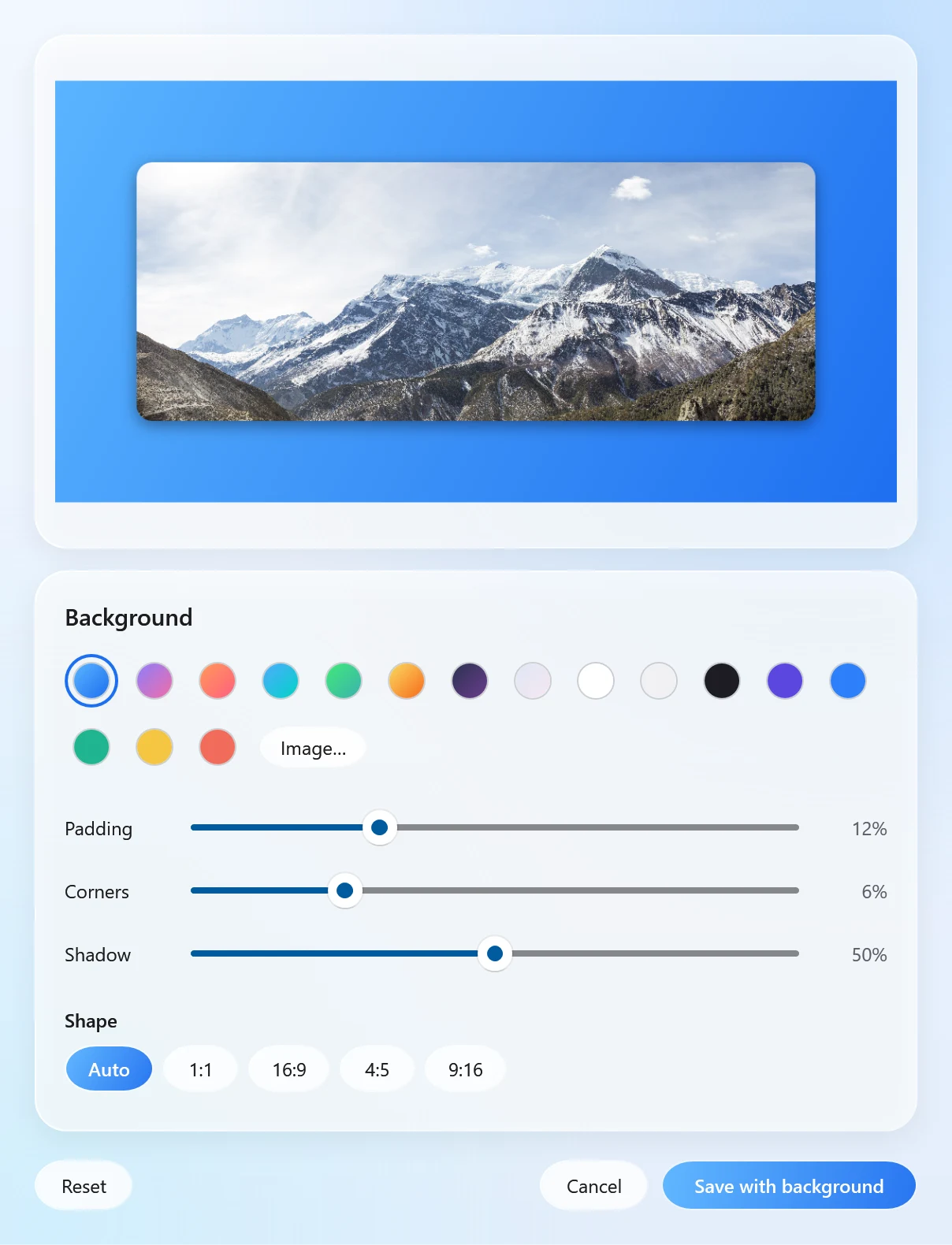
A plain screenshot pasted into a post or slide looks unfinished. A soft background, some padding and rounded corners make it look designed. Xnapper does that on Mac, together with taking the screenshot. Santra is a different kind of tool. It works on files you already have, so you take the screenshot with Windows as usual (Win + Shift + S or the Snipping Tool) and then give it a background.
Santra and Xnapper side by side
| Feature | Santra | Xnapper |
|---|---|---|
| Runs on | Windows 10 and 11 (64-bit) | Mac only (macOS 10.15 or newer) |
| Takes screenshots | ✗ No | ✓ Yes |
| Backgrounds | 56 built-in wallpapers in 7 styles, gradients, colours or your own picture | Automatic colour, gradients or image |
| Padding, rounded corners, shadow | ✓ Yes | Not listed on its site |
| Arrows, text, blur, hiding sensitive data | ✗ No | ✓ Yes |
| Copy text out of a screenshot | ✗ No | ✓ Yes |
| Works on screen recordings too | Yes, saves an MP4 with the sound kept | Not listed on its site |
| Price | First 25 files free, then US$19 once for 3 PCs | Free with watermark; from US$29.99 once for 1 Mac |
When to choose Xnapper
- You use a Mac. Xnapper is made for it, and Santra doesn't run on macOS.
- You want one app that takes the screenshot and polishes it in one go.
- You annotate a lot: arrows, shapes, text, blur, or automatically hiding emails and card numbers. Santra has none of these.
- You need to copy text out of a screenshot.
When to choose Santra
- You are on Windows and mainly want the polished look: background, padding, rounded corners and shadow.
- You also share screen recordings. Santra puts videos on the same backgrounds, keeps the sound and saves an MP4, which suits product demos and tutorials.
- You want a choice of shapes for social posts: Auto, 1:1, 16:9, 4:5 or 9:16, plus an optional blur on the background.
- You'd like the same app to convert, compress and crop files too, for a one-time US$19 for up to 3 PCs.
How to give a screenshot a background on Windows
- Take the screenshot as usual and save it, or find an existing one in File Explorer.
- Start dragging it and tap Alt to open Santra's Tools orbit.
- Drop it on Add background, choose a wallpaper, gradient or colour, adjust padding and corners, and save.
The result is saved next to the original as "name with background". Several screenshots can be dropped together. To trim or shrink a recording first, see trim a video and compress a video.
A word on the details
Xnapper's features and prices come from its own website, checked on 22 October 2026. Its prices are in US dollars, and taxes may be added. We couldn't find the free version's exact limits beyond the watermark, so we haven't listed any.