Why old AVI files are worth converting
AVI is one of the oldest video formats on Windows. Digital cameras from the 2000s, old phones, webcams and many downloaded films saved video this way. The files still exist on hard drives and memory cards everywhere, but newer devices and websites often refuse them: phones can't play them, TVs show an error, and upload forms ask for MP4. Converting them is the easiest way to keep family videos watchable.
How to convert AVI to MP4 with Santra
- Open the folder with your AVI files in File Explorer.
- Start dragging one, and keep holding the mouse button.
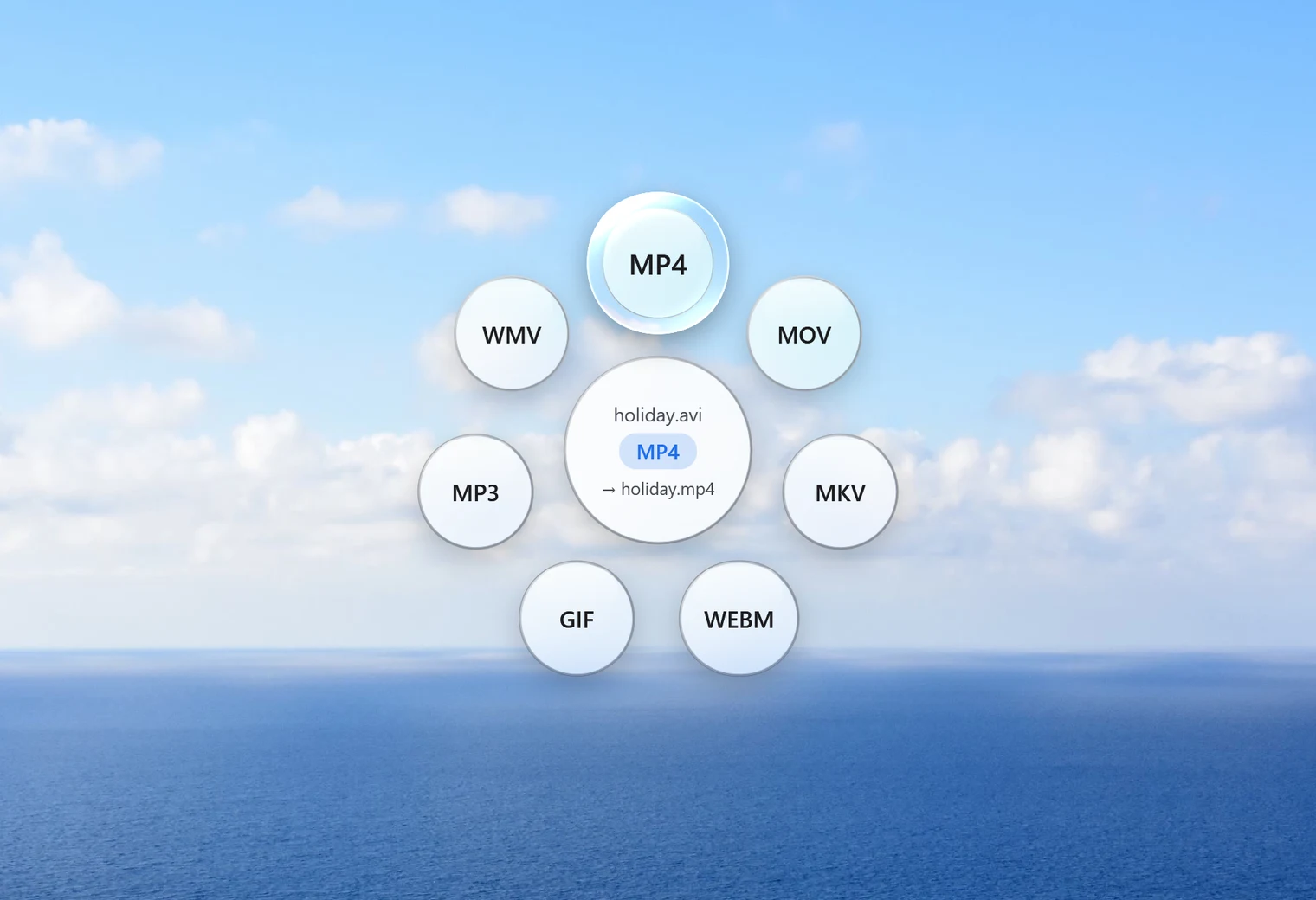
- Tap Shift to open Santra's Convert orbit.
- Drop the file on MP4.
Santra shows the progress in a small notification, with Cancel if you need it. The MP4 lands next to the AVI with the same name. Your AVI isn't changed, and a file that already has that name is never replaced: the new one is called "name (2).mp4".
A whole memory card at once
If you've copied an old camera's card to your PC, you may have dozens of AVI clips. Select them all with Ctrl + A, drag them together, tap Shift and drop them on MP4. Santra works through them one by one and shows its progress. There's no file-size limit, because nothing is uploaded, so long recordings are fine; they just take longer.
What happens to the video inside
An AVI is a container, and the video inside it is often an older format such as MPEG-4 Part 2 (the kind used by DivX and Xvid). MP4 players don't expect that, so Santra re-encodes the picture to H.264 using Windows' own built-in encoder, and the sound to AAC. That's what makes the result play almost everywhere.
Re-encoding takes time and compresses the picture once more. In our test, a 40-second Full HD clip took about 23 seconds. For old camera footage, which is usually small and soft to begin with, the extra compression is rarely noticeable.
Should you keep the AVI files?
Santra never deletes or changes the original, so the choice is yours. A sensible routine for old family videos: convert a batch, play a few of the MP4s to check them, then decide. If space is tight, the AVIs can go once you're happy. If they're irreplaceable, keep them on a backup drive anyway: an untouched original is always the safest copy.
Want the converted files kept apart from the originals? In Santra's Settings you can choose one folder where every converted file is saved, instead of next to the source.
After converting: trim, join or shrink
Once your clips are MP4, Santra's Tools orbit (drag, then tap Alt) can help tidy them up:
- Trim keeps just the good part of a clip.
- Join puts several clips together into one MP4, in the order you choose.
- Compress makes a smaller copy to share by email or chat.
Other ways to convert AVI to MP4
- HandBrake: free and thorough, with presets and detailed quality options. Great if you want control.
- VLC: can convert through its Convert/Save menu, one file at a time.
- Online converters: workable for a small clip, but old home videos are large and personal, and many sites limit the file size.
Santra suits a box of old clips best: select them all, drop once, and nothing leaves your PC. It runs on Windows 10 and 11.