Why send a PDF instead of a Word file
A PDF looks the same on every screen and printer, and people can't change it by accident. That's why job applications, invoices, forms and contracts usually ask for PDF. Converting Word to PDF is one of the most common file jobs there is.
How to convert Word to PDF with Santra
- Find the document in File Explorer or on your desktop.
- Start dragging it and keep holding the mouse button.
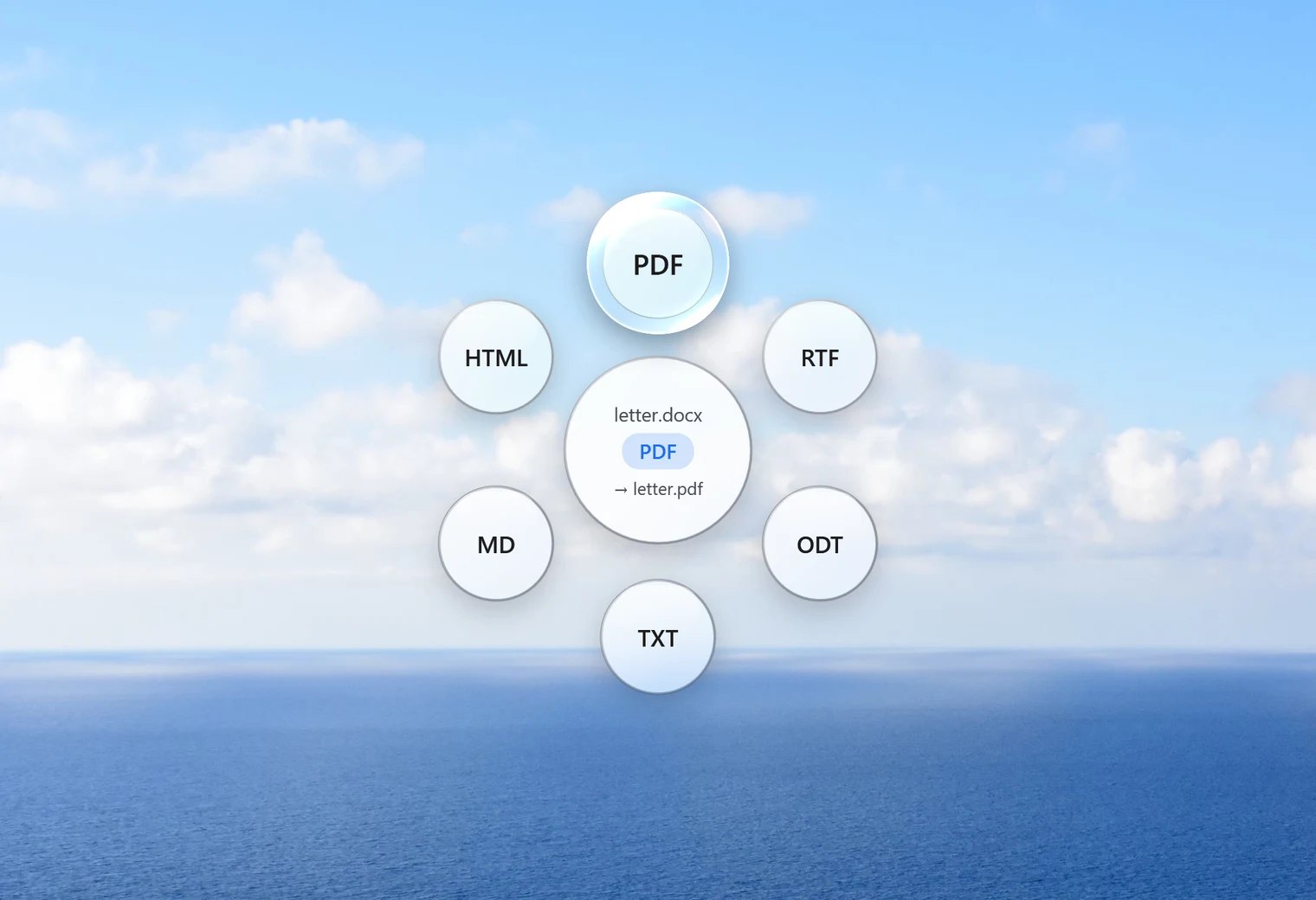
- Tap Shift. Santra's Convert orbit opens under your cursor.
- Drop the file on PDF.
The PDF is saved next to the document with the same name. The Word file stays exactly as it was, and an existing PDF with that name is never overwritten: the new one becomes "name (2).pdf". In our test, a short letter took about 3 seconds.
You don't need Word installed
Santra reads Word documents itself, so it works on PCs without Microsoft Office. It opens DOCX, DOC, DOCM, DOTX and RTF files (and HTML pages too). Besides PDF, the same orbit can save a document as DOCX, RTF, ODT, plain text (TXT), Markdown (MD) or HTML.
Text and Markdown files too
Not everything starts in Word. Santra turns plain text files (.txt) into PDF or DOCX the same way, and Markdown files (.md), which many note apps and developers use, into PDF, DOCX, plain text or HTML. Drag the file, tap Shift and pick the format.
Convert a stack of documents at once
Select all the documents (Ctrl + A selects everything in a folder), drag them together, tap Shift and drop them on PDF. Each becomes its own PDF. If you then want them as one file, select the PDFs and use Merge PDFs from the Tools orbit (drag and tap Alt).
Private documents stay private
CVs, contracts, medical letters and payslips are exactly the kind of files you shouldn't hand to a random website. Santra does the whole conversion on your own PC and works offline. It never uploads your documents, their names or their contents.
Need the PDF to be private too? Use Lock in the Tools orbit to save a copy that needs a password to open.
Other ways to convert Word to PDF
- Word itself: if you have Word, File, Save as, then choose PDF. It's reliable for one document at a time.
- LibreOffice: free office software that opens Word files and exports PDF. A good choice if you also need to edit the documents.
- Print to PDF: any program that can open and print the document can "print" it to Microsoft Print to PDF.
- Online converters: quick and free, but your document is uploaded to someone else's server.
Santra is the fast choice for many documents, or when Word isn't installed. Very complex layouts can look slightly different from Word, as with any converter that isn't Word itself, so glance over important PDFs before sending them. Santra runs on Windows 10 and 11.
Going the other way? PDF to Word isn't offered: converting PDFs back into editable documents is unreliable everywhere, so Santra leaves it out rather than give you a messy result.